Godot Node Tree Shell
An asset by JeanKouss
Install Asset
Install via Godot
To maintain one source of truth, Godot Asset Library is just a mirror of the old asset library so you can download directly on Godot via the integrated asset library browser
Quick Information

Godot Node Tree Shell
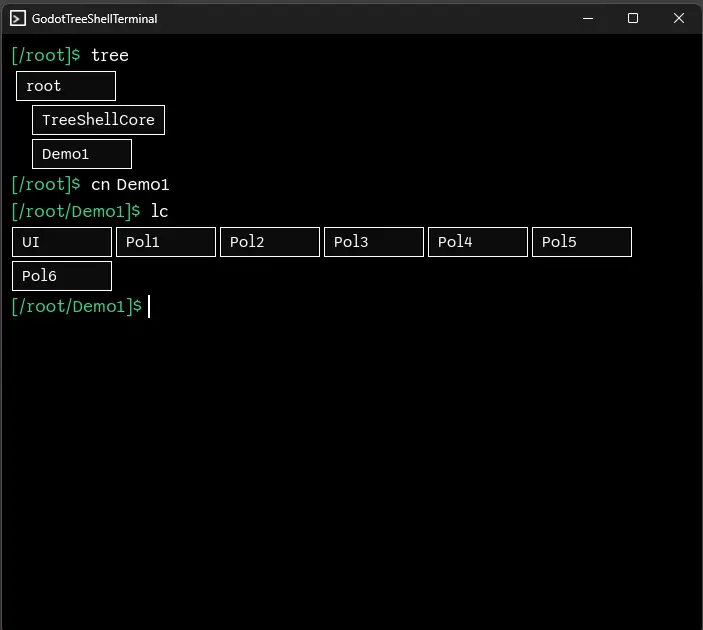
An in-game shell terminal for inspecting and manipulating the scene tree at runtime. Navigate nodes, read/write properties, call methods — all from a terminal overlay.Features : * Set and get node property values* Call node functions* Trigger signalsType `help` to see all available commands
Supported Engine Version
4.0
Version String
0.1.1
License Version
MIT
Support Level
community
Modified Date
2 months ago
Git URL
Issue URL
Godot Node Tree Shell
An in-game shell terminal for inspecting and manipulating the scene tree at runtime.
Navigate nodes, read/write properties, call methods — all from a terminal overlay.


✨ Features
- Navigate the scene tree — traverse nodes using familiar shell-like commands
- Inspect & modify properties — get and set any property on the current node
- Call methods — invoke functions on nodes with arguments
- Autocomplete — tab-completion for node properties and methods
- Command history — navigate previous commands with the arrow keys
- Tree view — visualize the subtree from any node
Coming soon:
- Signal emission — trigger signals on any node directly from the shell
- Property watching — monitor a property in real time and get notified whenever its value changes
- Property value helpers — context-aware input UI based on property type (e.g. a color picker when editing a
Colorproperty)
💾 Installation
Asset Library (Recommended)
- In Godot, open the AssetLib tab.
- Search for "Godot Node Tree Shell" and install it.
- Enable the plugin under Project → Project Settings → Plugins.
Manual
- Download or clone this repository.
- Copy the
addons/godot-node-tree-shellfolder into your project'saddons/directory. - Enable the plugin under Project → Project Settings → Plugins.
[!NOTE] Only the
addons/godot-node-tree-shellfolder is required. Any files or directories outside ofaddons/(e.g. demo scenes, assets) can be safely ignored.
The NodeTreeShellCore autoload singleton is registered automatically when the plugin is enabled.
[!NOTE] For more help, see Godot's official documentation on installing plugins.
🚀 Usage
Once the plugin is enabled, press F4 at runtime to toggle the terminal overlay. No extra setup needed.
At runtime, the prompt shows the active node path:
[/root]$ <command>
[!NOTE] The terminal opens as a sub-window. If embed subwindows is enabled in your project settings, a warning banner will appear — you can dismiss it or toggle the setting directly from the banner.
Commands
| Command | Arguments | Description |
|---|---|---|
help |
— | List all available commands |
lc |
— | List children of the current node |
cn |
[path] |
Change current node, or print current node if no path is given |
get |
<property> |
Get the value of a property on the current node |
set |
<property> <value> |
Set a property on the current node |
call |
<function_name> [args...] |
Call a method on the current node |
tree |
[depth] |
Show the subtree from the current node |
history |
[n] |
Show command history (optionally last n entries) |
Keyboard Shortcuts
| Key | Action |
|---|---|
F4 |
Toggle the terminal overlay |
Enter |
Execute command / confirm autocomplete |
↑ / ↓ |
Navigate history or autocomplete candidates |
Escape |
Close the autocomplete panel |
An in-game shell terminal for inspecting and manipulating the scene tree at runtime. Navigate nodes, read/write properties, call methods — all from a terminal overlay.
Features :
* Set and get node property values
* Call node functions
* Trigger signals
Type `help` to see all available commands
Reviews
Quick Information
Godot Node Tree Shell
An in-game shell terminal for inspecting and manipulating the scene tree at runtime. Navigate nodes, read/write properties, call methods — all from a terminal overlay.Features : * Set and get node property values* Call node functions* Trigger signalsType `help` to see all available commands
Supported Engine Version
4.0
Version String
0.1.1
License Version
MIT
Support Level
community
Modified Date
2 months ago
Git URL
Issue URL