Install Asset
Install via Godot
To maintain one source of truth, Godot Asset Library is just a mirror of the old asset library so you can download directly on Godot via the integrated asset library browser
Quick Information
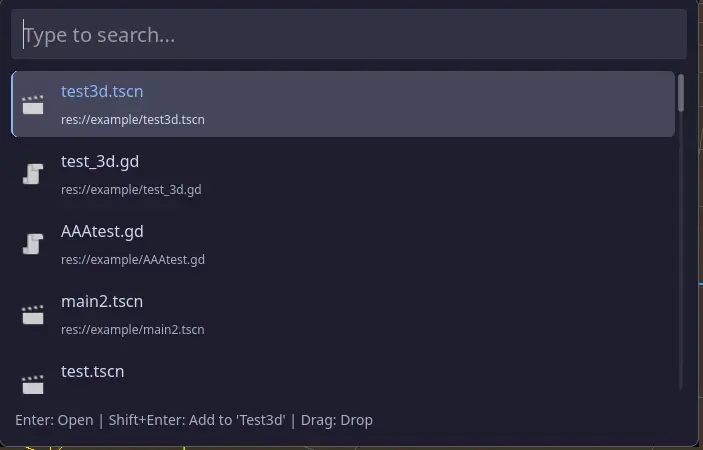
Spotlight Search is a "global search + command palette" plugin for Godot 4, offering capabilities such as file/scene/script search, command filtering, node jumping, history, Pinning, context menus, extended commands, and more, similar to Spotlight / Command Palette in IDEs.
Spotlight Search (Godot 4 Editor Plugin)
Directory: addons/spotlight_search
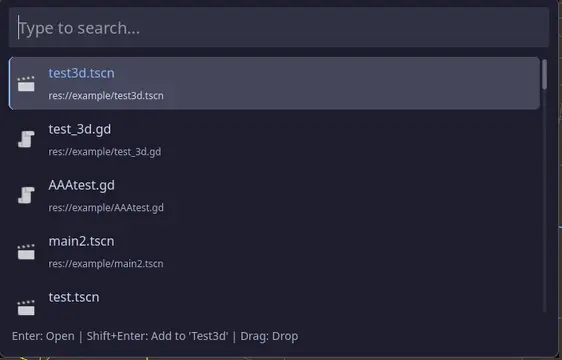
Spotlight Search is a "global search + command palette" plugin for Godot 4, offering capabilities such as file/scene/script search, command filtering, node jumping, history, Pinning, context menus, extended commands, and more, similar to Spotlight / Command Palette in IDEs.
Demo
Feature Overview
- Quick search for project resources
- Supports scenes (
.tscn), scripts (.gd/.cs), images, audio, general resources, etc. - Fuzzy matching of file names, sorted by score.
- Supports scenes (
- Command prefix filtering
-gd: Search only GDScript.-sc: Search only scenes.-img: Search only images.-res: Search only other resources.-track: Search in "tracked nodes" (in conjunction with the Inspector button).-node: Browse built-in Node types and their properties.-class: Browse properties and methods of engine classes.
- Common operation commands
-new: Create script, Shader, and other resource files.-scene: Run, reload, save the current scene.-color: Color parsing and copying tool, supports#HEX/rgb()etc.-reload: Reload the entire project.-quit: Exit the editor.-fs: Toggle editor fullscreen/windowed mode.
- History and Pinning
- Records opened files and commands, supports viewing recent records when input is empty.
- Pin files to the top via the right-click menu.
- Context Menu
- Files/Resources: Copy path, copy file name, locate in FileSystem, open with external editor, open containing folder, Pin/Unpin.
- Nodes: Copy
$-prefixed node path, copy node name, focus in scene tree, duplicate node.
- Tracked Nodes
- Add/remove "Add to Spotlight Search" tag for any Node in the Inspector.
- Use the
-trackprefix to quickly search for these tagged nodes in the current scene.
- Configurable and Extensible
- Set in the configuration window:
- Maximum number of results.
- Directories to exclude (e.g.,
addons/,.git/,.import/, etc.). - Activation shortcut (default Alt+Q).
- Import/manage external JSON command configurations.
- Supports writing extension commands via JSON + GDScript, and registering custom actions via API.
- Set in the configuration window:
Installation and Enabling
- Copy this plugin directory to your project:
- Copy the entire
addons/spotlight_searchfolder to your Godot project root.
- Copy the entire
- Enable the plugin in the Godot 4 editor:
- Go to:
Project > Project Settings... > Plugins. - Find
Spotlight Searchand switch its status toActive.
- Go to:
- After enabling, a
Spotlightbutton will appear in the editor's top toolbar, and a "Add to Spotlight Search" button will be added to nodes in the Inspector.
Basic Usage
1. Open / Close Spotlight Window
- Default shortcut:
Alt + Q- Logic can be found in
addons/spotlight_search/managers/config_manager.gd:124-137.
- Logic can be found in
- Other ways:
- Clicking the
Spotlightbutton in the editor's top bar will open the configuration window (not the search window). - To open the search window, you need to use the shortcut.
- Clicking the
Spotlight window script: addons/spotlight_search/ui/spotlight_window.gd.
Scene: addons/spotlight_search/ui/spotlight_window.tscn.
2. Basic Search
- After opening the Spotlight window, the cursor will automatically focus on the search box.
- Directly enter keywords to perform fuzzy searches by file name:
- Supports mid-string and sequential fuzzy matching, e.g., entering
plgcan matchspotlight_plugin.gd.
- Supports mid-string and sequential fuzzy matching, e.g., entering
- When no content is entered (empty input), it will display:
- Files Pinned to the top.
- Recently accessed files.
- A suitable number of recommended scenes and script resources.
The core search logic is located in addons/spotlight_search/services/search_logic.gd and addons/spotlight_search/services/query_service.gd.
3. Using Command Prefix Filtering
Entering a command prefix (starting with -) in front of the search box can switch between different search modes:
- Resource filtering:
-gd: Search only script files.-sc: Search only scene files.-img: Search only images.-res: Search only other resources.
- Tracked Nodes:
-track: Search in "tracked nodes" (see Node Tracking below).
- Engine Class Browsing:
-node: Browse built-in Node types and their exposed properties.-class: Browse properties and methods of any class.
- New Resources:
-new -script MyScript: Create a script file (namedMyScript.gd) in the currently selected directory.-new -shader MyShader: Create a basic Shader file.
- Configuration Commands:
-config -plugin_setting: Open the plugin configuration window.
Command definitions are centralized in the BUILTIN_COMMANDS constant in addons/spotlight_search/managers/command_manager.gd.
4. History and Favorites
- History:
- When executing commands starting with
-(e.g.,-gd,-new -script), they will be written to project settings viaHistoryManager.add_to_history(). - In the Spotlight window, when the search box is empty, pressing
Shift + ↑will display the "History View", including:- Favorite commands.
- Recently used commands.
- When executing commands starting with
- Favorites:
- Data structures and read/write interfaces have been implemented in
addons/spotlight_search/managers/history_manager.gd(add_favorite/toggle_favorite, etc.). - In the current version, the bottom hint displays
F: Toggle Favorite, but the corresponding key logic is not yet bound. SeeISSUES.mdfor details.
- Data structures and read/write interfaces have been implemented in
Node Tracking
If you have "key nodes" in your scene that you need to locate repeatedly, you can use the node tracking feature:
- Select any node in the scene, and you will see a button injected by the plugin in the Inspector:
- Initial state:
Add to Spotlight Search(green). - Tracked state:
Remove from Spotlight Search(red).
- Initial state:
- Click the button to add/remove the node from the
spotlight_trackedgroup. The group name is defined inaddons/spotlight_search/editor/spotlight_tracker.gd:3and is synchronized with the search logic. - In the Spotlight search box, enter:
-track: List all tagged nodes.-track xxx: Fuzzy search by name within tagged nodes.
- After selecting a result, you can quickly locate it in the scene tree and switch to 2D/3D view.
Related code:
- Inspector plugin:
addons/spotlight_search/editor/spotlight_tracker.gd - Node search logic:
addons/spotlight_search/services/search_logic.gd:29-73
Right-Click Context Menu
In the results list, in addition to pure command items, you can open the context menu by right-clicking:
- Files / Resources (
defaultmenu):Copy Path: Copy resource path (e.g.,res://...).Copy File Name: Copy file name.Show in FileSystem: Locate in FileSystem Dock.Open Containing Folder: Open the containing directory in the system file manager.Open in External Editor: Open the file with the system's default program.Pin/Unpin: Add or remove this path from the Pin list.
- Nodes (
nodemenu):Copy Node Path ($...): Copy the$-prefixed relative node path, automatically handling spaces.Copy Node Name: Copy the node name.Focus in Scene Tree: Select the node in the scene tree and switch to the corresponding 2D/3D view.Duplicate Node: Duplicate the node and add it under the same parent node.
Menu configuration is located at: addons/spotlight_search/services/context_menu_config.gd.
Behavior implementation is located at: addons/spotlight_search/services/context_menu_service.gd.
Configuration and Extension
1. Open Configuration Window
There are two ways to open the Spotlight configuration window:
- Use a command in Spotlight Search:
- Enter
-config -plugin_settingand execute.
- Enter
- Via built-in action:
- The plugin registers an
open_settingsaction, implemented inaddons/spotlight_search/services/action_registry.gd:90-111. Clicking theSpotlightbutton in the top bar will call this action.
- The plugin registers an
Configuration window script: addons/spotlight_search/ui/config_window.gd.
2. Configurable Items
You can adjust the following in the configuration window:
- Maximum results:
- Corresponds to
addons/spotlight_search/config/max_resultsin Project Settings. - Read by
ConfigManager.get_max_results(), affecting the number of truncated query results.
- Corresponds to
- Exclude directories:
- One pattern per line, e.g.,
addons/,.git/,.godot/, etc. - Used to skip parts of directories during file system scanning. The configuration item is
addons/spotlight_search/config/exclude_folders.
- One pattern per line, e.g.,
- Shortcut:
- You can click "Activation Key" in the configuration window, press any key to set a new keycode, and check/uncheck
Alt/Ctrl/Shiftmodifier keys. - The final combination is uniformly judged by
ConfigManager.is_shortcut(event).
- You can click "Activation Key" in the configuration window, press any key to set a new keycode, and check/uncheck
- External JSON configuration:
- Select a JSON file via the "Import JSON Config..." button.
- The imported path will be saved in the corresponding dictionary in
addons/spotlight_search/config/external_configsand uniformly loaded byCommandManager.load_all_commands(). - The configuration window will list all loaded/disabled/erroneous JSON configuration files, making it easy to enable/disable or remove them.
3. JSON Command Extension Example
The plugin includes a complete Hello World extension example:
- JSON file:
addons/spotlight_search/data/examples/hello_extension.json
- Action script:
addons/spotlight_search/data/examples/hello_actions.gd
Usage:
- Open the Spotlight configuration window.
- Click the "Create Example Extension" button.
- The plugin will create under
res://toolkit_extensions/:hello_extension.jsonhello_actions.gd
- And automatically register the JSON path to the external configuration, reloading commands.
- Afterwards, you can enter
-helloin Spotlight to experience the complete process of nested commands, parameter validation, and action execution.
Main process of command parsing and execution:
- JSON parsing and command registration:
addons/spotlight_search/managers/command_manager.gd:_load_config_file()and_register_json_item().
- Query parsing:
addons/spotlight_search/services/query_service.gd:_try_parse_command().
- Action execution:
addons/spotlight_search/services/action_service.gdandaddons/spotlight_search/services/action_registry.gd.
4. Registering Custom Actions via API
If you only need to define several reusable actions and don't want to build a complete command tree via JSON, you can use ToolkitAPI:
- API script:
addons/spotlight_search/api/toolkit_api.gd - Core interfaces:
ToolkitAPI.register_action(action_id: String, callable: Callable)ToolkitAPI.show_toast(message: String, type: String = "info")
Example (a sample template is built into the plugin, in spotlight_plugin.gd:_get_sample_extension_content()):
@tool
extends RefCounted
const ToolkitAPI = preload("res://addons/spotlight_search/api/toolkit_api.gd")
func _init():
ToolkitAPI.register_action("hello_world", _hello_world)
func _hello_world(args: Array = []):
var name = args[0] if args.size() > 0 else "User"
ToolkitAPI.show_toast("Hello " + name + "!", "success")
Combined with the action_id in JSON, these actions can be executed from the Spotlight panel.
5. Provider Base Class (Reserved Interface)
addons/spotlight_search/api/base_provider.gd provides the SpotlightProvider base class for implementing prefix-driven custom Providers:
- Define the trigger prefix via
get_prefix()(e.g.,-todo). - Return an array of dictionaries in
query(search_text), which will be converted toSearchDataand displayed in the results list. execute(action_id, args)is used to execute custom logic when the user selects a result.
The current version does not automatically scan/register Providers in the core query process.
Compatibility
- The code extensively uses:
DisplayServer,Windownew properties.@tool+RefCountedpattern.- Godot 4 type constants (e.g.,
TYPE_*,PROPERTY_USAGE_*). EditorInterface's 4.x API (e.g.,open_scene_from_path,restart_editor, etc.).
- Therefore, this plugin is positioned as a Godot 4.x editor plugin and is not recommended for use in Godot 3 projects.
Spotlight Search is a "global search + command palette" plugin for Godot 4, offering capabilities such as file/scene/script search, command filtering, node jumping, history, Pinning, context menus, extended commands, and more, similar to Spotlight / Command Palette in IDEs.
Reviews
Quick Information
Spotlight Search is a "global search + command palette" plugin for Godot 4, offering capabilities such as file/scene/script search, command filtering, node jumping, history, Pinning, context menus, extended commands, and more, similar to Spotlight / Command Palette in IDEs.
