GDTag
An asset by Reivyn
Install Asset
Install via Godot
To maintain one source of truth, Godot Asset Library is just a mirror of the old asset library so you can download directly on Godot via the integrated asset library browser
Quick Information

GDTag
Manage tags and attach them to nodes or resources and get rid of those pesky string constants!
Supported Engine Version
4.1
Version String
1.12
License Version
Unlicense
Support Level
community
Modified Date
3 months ago
Git URL
Issue URL
GDTag
A simple tagging system for Godot 4.1+, modeled after Unreal Engine's gameplay tag system. The purpose of the system is to provide a nice way to easily handle string constants.
Installation
Extract the GDTag folder wherever you'd like in your project. Optionally, configure your tag_database.json file's location in the project settings (make sure advanced settings is enabled or search "GD Tag").
Usage
Tags
To use a tag, create an export variable with a type of Tag in gdscript:
@export var tag_a : Tag
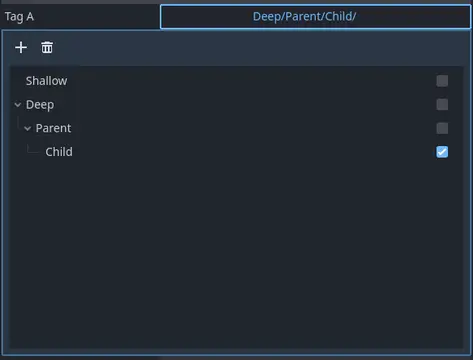
You may now use the tag editor to select a tag for this property:

This embedded TagEditor has all the functionality of the docked editor: Usage of the TagEditor is detailed more below. The 'Tag' type may only select one tag at a time, use it to compare against other Tags or TagContainers.
bool match(OtherTag: Tag)
Returns true if the compared Tag OtherTag matches the current tag exactly.
bool match_inheritance(OtherTag: Tag)
Returns true if all the compared Tag OtherTag's path elements are contained in the current tag. For example: The tag 'Deep/Parent/Child' contains 'Deep' then 'Parent' so it will match with tag: 'Deep/Parent'.
Use Case
A use case for this could be in an RPG: We have an EnemyInfo resource that has a Tag for enemy type: 'Enemies/Undead/Skeleton', skeleton enemies take extra blunt damage in our game so we can match the skeleton type exactly.
However, all undead types take damage from healing effects instead of restoring HP... We can use *enemy_type.match_inheritance('Enemies/Undead/')* to check this! This will match for our skeletons and also a new ghost type that we want to add in the future: 'Enemies/Undead/Ghost/'
TagContainers
TagContainers allow a property to have multiple tags:
@export var tag_container : TagContainer
You may use the tag editor to select tags for the TagContainer, similar to when editing a Tag.
bool has(OtherTag: Tag)
Returns true if the compared Tag OtherTag is in the container.
bool any(OtherContainer: Tag)
Returns true if the compared TagContainer OtherContainer has any tag that is in the container.
bool exact(OtherContainer: Tag)
Returns true if the compared TagContainer OtherContainer has the exact same tags as the container.
bool all(OtherContainer: Tag)
Returns true if the container has all the tags in the compared TagContainer OtherContainer.
bool none(OtherContainer: Tag)
Returns true if the container has none of the tags in the compared TagContainer OtherContainer.
int overlap_count(OtherContainer: Tag)
Returns the number of tags the container has in common with the compared TagContainer OtherContainer.
int size()
Returns the number of tags int the container.
The Tag Editor
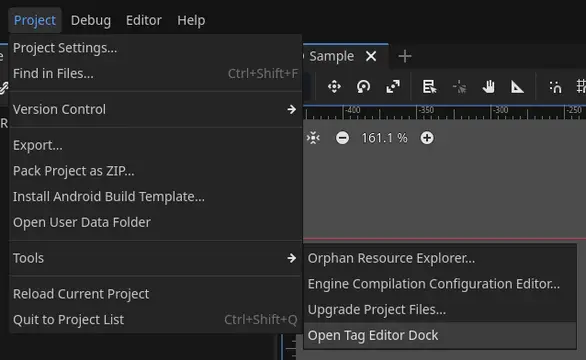
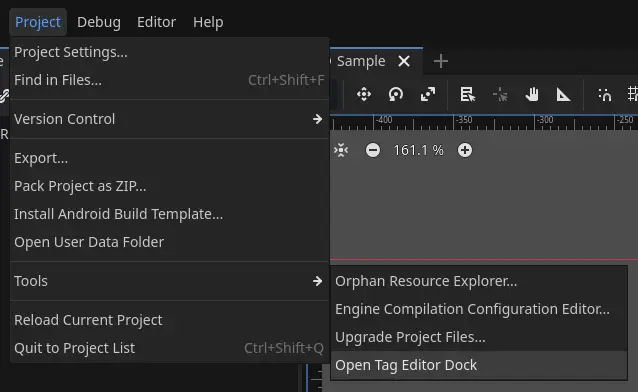
To open the standalone tag editor: Project>Tools>Open Tag Editor

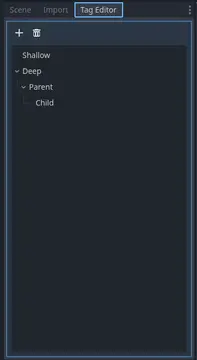
The tag editor should now be docked on the top-left, you may move it but re-opening it will return it to its original location. You may also open it by editing either an exported Tag or TagContainer in gdscript, although these tag editors have slightly differing functionality.

The toolbar has two buttons, clicking the first button will add a tag and prompt you to name it. Tags with the same parent may not share names. That is, every tag's path should be unique.
Left clicking tags will select them. Adding a tag with a tag selected will parent it to the selected tag.
To delete a tag, click the second toolbar button with a tag selected. This will delete the tag and all its children.
To rename a tag, double click it.
You may also drag tags around in the editor to reposition or reparent them.
Known issues
Dupliced objects with tags will reference the same tag.
Since Tags are Resources, a workaround is removing the reference in the new object under the scene file after duplication otherwise editing it may result in unwanted changes on the original object.
Manage tags and attach them to nodes or resources and get rid of those pesky string constants!
Reviews
Quick Information
GDTag
Manage tags and attach them to nodes or resources and get rid of those pesky string constants!
Supported Engine Version
4.1
Version String
1.12
License Version
Unlicense
Support Level
community
Modified Date
3 months ago
Git URL
Issue URL