Batch Sheet Importer
An asset by festering
Install Asset
Install via Godot
To maintain one source of truth, Godot Asset Library is just a mirror of the old asset library so you can download directly on Godot via the integrated asset library browser
Quick Information

Batch Sheet Importer
This tool automates the creation of SpriteFrames animations from spritesheets. It will automatically detect 8-way animations and number them. BSI can be used through an interactive GUI mode or through a batch mode that is driven by a CSV file.
Supported Engine Version
4.5
Version String
1.0
License Version
MIT
Support Level
community
Modified Date
3 months ago
Git URL
Issue URL
Batch Sheet Importer (BSI)
A Godot engine addon for batch converting spritesheet images into SpriteFrames resources. Automatically slice spritesheets according to animation specifications and generate animation data ready for use with AnimatedSprite2D nodes. BSI is particularly suited for 8-way animations.
BSI is designed to work well with the tools in the Spritesheet Creation Tools project.
Features
- Batch Processing: Convert multiple spritesheets in a single operation
- CSV-Based Configuration: Define animations with a simple CSV format
- Automatic Slicing: Intelligently slice spritesheets into individual frames
- Animation Metadata: Set FPS, start frame, loop behavior per animation
- Editor Integration: Intuitive GUI integrated into the Godot Editor
- Resource Output: Generates standard Godot
SpriteFramesresources (.tresfiles)
Installation
- Copy the
batch_sheetfolder to your Godot project'saddons/directory - Open your project in the Godot Editor
- Navigate to Project → Project Settings → Plugins
- Find "Batch Sheet Importer" in the list and enable it
- A new "BSI" tab will appear in the editor's top menu bar
Conventions / Assumptions
Spritesheets should be organized in a grid layout with animations arranged row-by-row. Each animation row contains frames from left to right.
BSI relies on a specific naming convention for spritesheet files:
<animation name>_sheet<sheet number>.<extension>
where
animation nameis the base animation name that will be used in the SpriteFrames resourcesheet numberis a file index corresponding to this animation (e.g., if the "walk" animation sprites take up 3 sheets, their files would be "walk_sheet1", "walk_sheet2", "walk_sheet3"). If there is only one spritesheet for an animation, it's best to include the "1" in the file name, though BSI might still work without it.extensionis the spritesheet file extension, which is currently limited to "png", "jpg", or "bmp"
For 8-way (or 8-direction) animations, BSI numbers the animations from 0 to 7, as shown:

BSI requires that the spritesheets contain the animations in clockwise order shown in the image. The spritesheets do not have to start with the "0" animation, however. For example, if the first animation in the spritesheet is the downward animation (direction = 2), tell BSI that the starting animation is 2. It will assume the animations are arranged as 2-7 then 0-1.
When creating the SpriteFrames, BSI appends the direction number to the base animation name.
BSI assumes that animations are 8-way if it finds more than the user-specified number of frames for an animation. In other words, if the user specifies that the "walk" animation has 10 frames and BSI finds 80 frames in the "walk" spritesheets, BSI will conclude that the "walk" animation is 8-way. There is no direct way to tell BSI that an animation is 8-way. Note that all directions of a particular animation must have the same number of frames.
Usage
BSI can be used either in an interactive GUI mode or in a batch mode. The batch mode is generally faster and easier to use.
GUI Mode

BSI's GUI mode gives direct control over spritesheet settings for individual spritesheet files or groups of files.
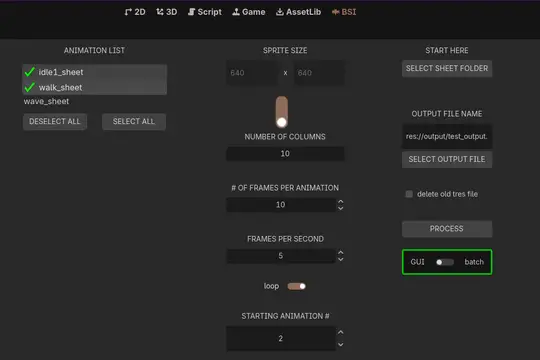
The contents of the GUI mode window / operations for use:
- Button for opening up a dialog for selecting the spritesheet folder
- The list of animations found in the spritesheet folder, populated after the folder is selected. Animations in this list can be selected for processing. (In the example image, the checkmarks indicate that the "idle1" and "walk" animations have just been processed.)
- Spritesheet layouts can either be defined by the number of columns or by the individual sprite sizes.
- The number of frames in the animation (each direction for 8-way animations)
- Animation speed in frames per second
- Whether or not the selected animations should be looped
- The first animation direction in the spritesheets (refer to the "Conventions" section in this readme)
- An edit box for directly specifying the output tres file name
- File dialog for selecting the output tres file
- If checked, the existing tres file will be deleted. If not checked, the processed animations will be added to the existing file.
- Button to do the processing
Note that the settings in items 3-7 will only apply to the sheets that are selected in the animation list box. Multiple processing steps are required if the spritesheets in the animation list use varied settings. To process animations that have different settings: select the new animations, adjust the settings, make sure item 10 is not selected, and click "PROCESS". Repeat as necessary. Using BSI's batch mode avoids this complication.
Batch Mode

BSI's batch mode only requires the selection of a CSV file that contains the information needed for processing the spritesheets.
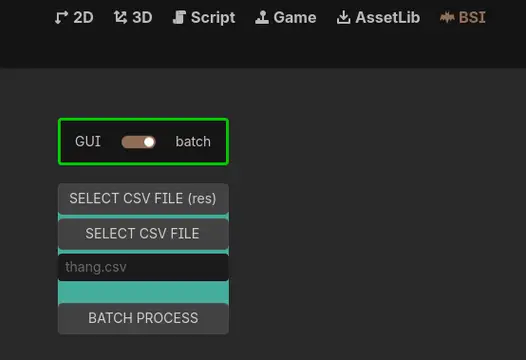
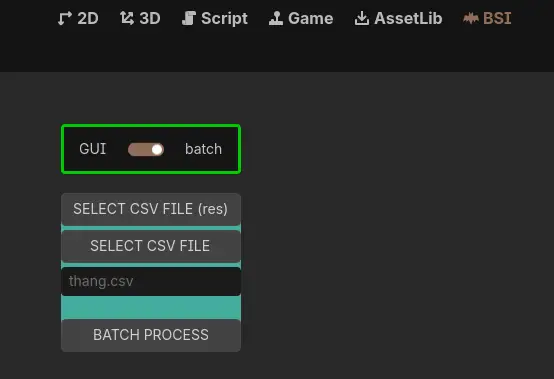
The contents of the batch mode window:
- (a) BSI mode selector
- (b) File dialog for selecting a CSV file from the project's resource directory
- (c) File dialog for selecting a CSV file from anywhere on the computer
- (d) Edit box for directly specifying a CSV file name
- (e) Button to start the processing
WARNING: As noted below, there is currently a bug that can affect BSI's batch mode. Always check that your output SpriteFrames animations look as expected.
CSV Configuration Format for Batch Mode
Create a .csv file with the following structure:
#anim, ncol, nframes, fps, start, loop
SPRITESHEET_PATH
OUTPUT_SPRITEFRAMES_PATH
animation_name,columns,frame_count,frames_per_second,start_frame,loop_enabled
The first line in the CSV file is a header that is there to remind the user what the inputs are for each animation:
anim: Animation namencol: Number of columns in the spritesheet gridnframes: Number of frames for this animation (per direction if 8-way)fps: Frames per second playback speedstart: First animation direction in 8-way spritesheet (0-based)loop: Whether the animation loops (true/false)
The spritesheet folder and output SpriteFrames resource paths will be within the Godot project and need to include the "res://" in them.
Multiple SpriteFrames resources can be created from one CSV file, as will be shown in the following example.
Example Configuration for Batch Mode
Here's an example of a CSV file that could be used to drive BSI in batch mode:
#anim, ncol, nframes, fps, start, loop
res://assets/player
res://player/spriteframes/player_frames.tres
idle,4,4,5,2,true
idle2,4,4,5,2,true
walk,6,8,10,2,true
run,6,6,10,2,true
#anim, ncol, nframes, fps, start, loop
res://assets/player
res://npc/spriteframes/npc_frames.tres
idle,4,4,5,2,true
walk,6,8,10,2,true
#anim, ncol, nframes, fps, start, loop
res://assets/squirrel
res://animals/squirrel_frames.tres
idle1,10,10,10,2,true
walk,10,10,10,2,true
wave,10,15,12,0,false
In this example, three SpriteFrames resources are created:
- player_frames: Has
idle,idle2,walk, andrunanimations, all looping. Each spritesheet starts with the downward animation (i.e.,start= 2). BSI will automatically detect that these are 8-way animations.idlehas 4 spritesheet columns, 4 frames for each direction, 5 FPSidle2has 4 spritesheet columns, 4 frames for each direction, 5 FPSwalkhas 6 spritesheet columns, 8 frames for each direction, 10 FPSrunhas 6 spritesheet columns, 6 frames for each direction, 10 FPS
- npc_frames: Uses the player spritesheets to create a subset of the player's animations in a separate SpriteFrames resource (resulting in an NPC that would be the player's twin)
- squirrel_frames: Has
idle,walk, andwaveanimations. All spritesheets have 10 columns.wavedoesn't loop and has 15 frames
Known Issues
Batch Mode Data Mangling: When running in batch mode, data in
.tresfiles can get mangled on repeat runs with the same output filename. Refer to code for more information.Workarounds:
- Reload the Godot project before a new BSI run
- Change the output
.tresfilename for each run- Run
bsi_gui.tscndirectly instead of using it as an addon
Requirements
- Godot Engine: 4.5+
- Project Type: 2D Projects
Credits
Created by Festering Puppies
License
This addon is provided under the terms specified in the LICENSE.md file.
This tool automates the creation of SpriteFrames animations from spritesheets. It will automatically detect 8-way animations and number them. BSI can be used through an interactive GUI mode or through a batch mode that is driven by a CSV file.
Reviews
Quick Information
Batch Sheet Importer
This tool automates the creation of SpriteFrames animations from spritesheets. It will automatically detect 8-way animations and number them. BSI can be used through an interactive GUI mode or through a batch mode that is driven by a CSV file.
Supported Engine Version
4.5
Version String
1.0
License Version
MIT
Support Level
community
Modified Date
3 months ago
Git URL
Issue URL