GodotAI
An asset by PurpleJelly
Install Asset
Install via Godot
To maintain one source of truth, Godot Asset Library is just a mirror of the old asset library so you can download directly on Godot via the integrated asset library browser
Quick Information

GodotAI
An AI coding assistant built directly into the Godot editor. Chat with Claude, ChatGPT, any OpenRouter model, or local models via Ollama, without leaving Godot. Already have a Claude Pro or Max subscription? The built-in proxy lets you use it directly with no API billing. Prefer fully offline? Connect to Ollama, LM Studio, or any local model, no API key or internet required. Visit the Itch.io page to keep up to date on the project: https://purplejelly.itch.io/godotai Features - Chat panel docked at the bottom of the Godot editor - Multi-provider: Anthropic (Claude), OpenAI (ChatGPT), OpenRouter (500+ models), Local (Ollama, LM Studio, llama.cpp) - Built-in Claude Proxy, use your Claude Pro or Max subscription directly; start/stop from within Godot with no API key or separate billing - Local model support, run fully offline with Ollama, LM Studio, llama.cpp, or any OpenAI-compatible server; no API key or internet required - Streaming responses, text appears as it is generated, not all at once - Markdown rendering with syntax-highlighted code blocks - Insert at Cursor, click any code block to insert it into the active script - Context-aware, automatically includes your active script and scene tree in the prompt - Chat history, conversations are saved per project and restored on next open - Configurable shortcuts, focus chat, send selected code, send message - Full settings dialog, API key, model, temperature, max tokens, system prompt per provider Setup - After enabling the plugin, a GodotAI panel appears at the bottom of the editor. - Click the Settings button (gear icon) in the panel. - Select your provider (Anthropic, OpenAI, OpenRouter, or Local). - Enter your API key for that provider. (Not required for local servers or Claude Proxy.) - Choose a model (or type a custom model ID). - Click Save. - Start chatting. Usage Tips - Claude Proxy: If you have a Claude Pro or Max subscription, select Claude Proxy in the Local tab of Settings and click Start, no separate API billing required. - Local Models: Install Ollama and pull a model (ollama pull llama3.2), then select the Ollama preset in the Local tab, GodotAI auto-detects available models. - Send selected code: Select code in a script editor, then press Ctrl+Shift+/ to paste it into the chat input automatically. - Insert at Cursor: In any AI response, hover over a code block and click the Insert button to paste the code into the script currently open in the editor. - Context: GodotAI automatically includes your active script content and scene tree structure in the system prompt so the AI understands your project.
Supported Engine Version
4.5
Version String
1.0.0
License Version
Proprietary
Support Level
community
Modified Date
2 months ago
Git URL
Issue URL
GodotAI
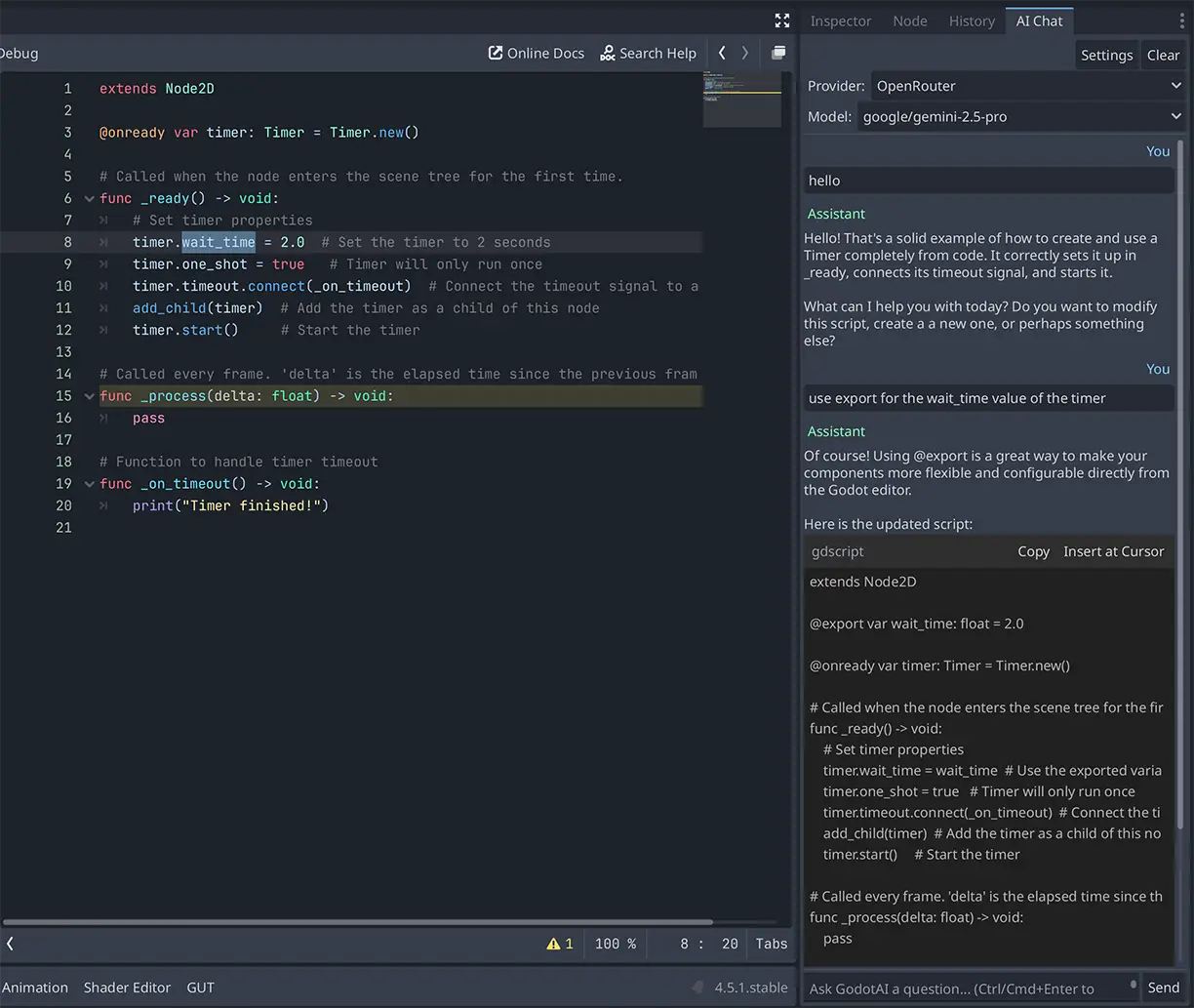
An AI coding assistant built directly into the Godot editor. Chat with Claude, ChatGPT, or any OpenRouter model without leaving Godot get code suggestions, ask questions about your project, and insert AI-generated code straight into your scripts.
Features
- Chat panel docked at the bottom of the Godot editor
- Multi-provider: Anthropic (Claude), OpenAI (ChatGPT), OpenRouter (500+ models)
- Streaming responses — text appears as it is generated, not all at once
- Markdown rendering with syntax-highlighted code blocks
- Insert at Cursor — click any code block to insert it into the active script
- Context-aware — automatically includes your active script and scene tree in the prompt
- Chat history — conversations are saved per project and restored on next open
- Configurable shortcuts — focus chat, send selected code, send message
- Full settings dialog — API key, model, temperature, max tokens, system prompt per provider
Example

Requirements
- Godot 4.5 or later
- An API key from at least one of:
- Anthropic (Claude models)
- OpenAI (GPT models)
- OpenRouter (500+ models from many providers)
Installation
From the Godot Asset Library (recommended)
- Open your Godot project.
- Go to AssetLib tab at the top of the editor.
- Search for GodotAI.
- Click Download, then Install.
- Enable the plugin: Project → Project Settings → Plugins → GodotAI → Enable.
Manual installation
- Download or clone this repository.
- Copy the
addons/godot_ai/folder into your project'saddons/directory. - Enable the plugin: Project → Project Settings → Plugins → GodotAI → Enable.
Setup
- After enabling the plugin, a GodotAI panel appears at the bottom of the editor.
- Click the Settings button (gear icon) in the panel.
- Select your provider (Anthropic, OpenAI, or OpenRouter).
- Enter your API key for that provider.
- Choose a model (or type a custom model ID).
- Click Save.
- Start chatting.
Providers
| Provider | Models | Notes |
|---|---|---|
| Anthropic | Claude 3.5 Sonnet, Claude 3 Haiku, etc. | Best for code; recommended default |
| OpenAI | GPT-4o, GPT-4 Turbo, GPT-3.5, etc. | — |
| OpenRouter | 500+ models | Model list fetched live from API |
Keyboard Shortcuts
Default shortcuts (configurable in Settings → Shortcuts):
| Action | Default |
|---|---|
| Focus chat input | Ctrl+/ |
| Send selected code | Ctrl+Shift+/ |
| Send message | Enter |
Usage Tips
- Send selected code: Select code in a script editor, then press
Ctrl+Shift+/to paste it into the chat input automatically. - Insert at Cursor: In any AI response, hover over a code block and click the Insert button to paste the code into the script currently open in the editor.
- Context: GodotAI automatically includes your active script content and scene tree structure in the system prompt so the AI understands your project.
License
Custom proprietary license free to use in personal and commercial Godot projects. Redistribution or resale of the plugin itself is not permitted. See LICENSE for full terms.
An AI coding assistant built directly into the Godot editor. Chat with Claude, ChatGPT, any OpenRouter model, or local models via Ollama, without leaving Godot.
Already have a Claude Pro or Max subscription? The built-in proxy lets you use it directly with no API billing. Prefer fully offline? Connect to Ollama, LM Studio, or
any local model, no API key or internet required.
Visit the Itch.io page to keep up to date on the project:
https://purplejelly.itch.io/godotai
Features
- Chat panel docked at the bottom of the Godot editor
- Multi-provider: Anthropic (Claude), OpenAI (ChatGPT), OpenRouter (500+ models), Local (Ollama, LM Studio, llama.cpp)
- Built-in Claude Proxy, use your Claude Pro or Max subscription directly; start/stop from within Godot with no API key or separate billing
- Local model support, run fully offline with Ollama, LM Studio, llama.cpp, or any OpenAI-compatible server; no API key or internet required
- Streaming responses, text appears as it is generated, not all at once
- Markdown rendering with syntax-highlighted code blocks
- Insert at Cursor, click any code block to insert it into the active script
- Context-aware, automatically includes your active script and scene tree in the prompt
- Chat history, conversations are saved per project and restored on next open
- Configurable shortcuts, focus chat, send selected code, send message
- Full settings dialog, API key, model, temperature, max tokens, system prompt per provider
Setup
- After enabling the plugin, a GodotAI panel appears at the bottom of the editor.
- Click the Settings button (gear icon) in the panel.
- Select your provider (Anthropic, OpenAI, OpenRouter, or Local).
- Enter your API key for that provider. (Not required for local servers or Claude Proxy.)
- Choose a model (or type a custom model ID).
- Click Save.
- Start chatting.
Usage Tips
- Claude Proxy: If you have a Claude Pro or Max subscription, select Claude Proxy in the Local tab of Settings and click Start, no separate API billing required.
- Local Models: Install Ollama and pull a model (ollama pull llama3.2), then select the Ollama preset in the Local tab, GodotAI auto-detects available models.
- Send selected code: Select code in a script editor, then press Ctrl+Shift+/ to paste it into the chat input automatically.
- Insert at Cursor: In any AI response, hover over a code block and click the Insert button to paste the code into the script currently open in the editor.
- Context: GodotAI automatically includes your active script content and scene tree structure in the system prompt so the AI understands your project.
Reviews
Quick Information
GodotAI
An AI coding assistant built directly into the Godot editor. Chat with Claude, ChatGPT, any OpenRouter model, or local models via Ollama, without leaving Godot. Already have a Claude Pro or Max subscription? The built-in proxy lets you use it directly with no API billing. Prefer fully offline? Connect to Ollama, LM Studio, or any local model, no API key or internet required. Visit the Itch.io page to keep up to date on the project: https://purplejelly.itch.io/godotai Features - Chat panel docked at the bottom of the Godot editor - Multi-provider: Anthropic (Claude), OpenAI (ChatGPT), OpenRouter (500+ models), Local (Ollama, LM Studio, llama.cpp) - Built-in Claude Proxy, use your Claude Pro or Max subscription directly; start/stop from within Godot with no API key or separate billing - Local model support, run fully offline with Ollama, LM Studio, llama.cpp, or any OpenAI-compatible server; no API key or internet required - Streaming responses, text appears as it is generated, not all at once - Markdown rendering with syntax-highlighted code blocks - Insert at Cursor, click any code block to insert it into the active script - Context-aware, automatically includes your active script and scene tree in the prompt - Chat history, conversations are saved per project and restored on next open - Configurable shortcuts, focus chat, send selected code, send message - Full settings dialog, API key, model, temperature, max tokens, system prompt per provider Setup - After enabling the plugin, a GodotAI panel appears at the bottom of the editor. - Click the Settings button (gear icon) in the panel. - Select your provider (Anthropic, OpenAI, OpenRouter, or Local). - Enter your API key for that provider. (Not required for local servers or Claude Proxy.) - Choose a model (or type a custom model ID). - Click Save. - Start chatting. Usage Tips - Claude Proxy: If you have a Claude Pro or Max subscription, select Claude Proxy in the Local tab of Settings and click Start, no separate API billing required. - Local Models: Install Ollama and pull a model (ollama pull llama3.2), then select the Ollama preset in the Local tab, GodotAI auto-detects available models. - Send selected code: Select code in a script editor, then press Ctrl+Shift+/ to paste it into the chat input automatically. - Insert at Cursor: In any AI response, hover over a code block and click the Insert button to paste the code into the script currently open in the editor. - Context: GodotAI automatically includes your active script content and scene tree structure in the system prompt so the AI understands your project.
Supported Engine Version
4.5
Version String
1.0.0
License Version
Proprietary
Support Level
community
Modified Date
2 months ago
Git URL
Issue URL