Clouds for Little Planets
An asset by BinarySemaphore
Install Asset
Install via Godot
To maintain one source of truth, Godot Asset Library is just a mirror of the old asset library so you can download directly on Godot via the integrated asset library browser
Quick Information

Clouds for Little Planets
Atmospheric and volumetric cloud compositor for spherical and flat worlds.Native Godot editor integration with reusable Resources and organized inspector categories.Check included addon README or GitHub README for video and written Guide.## Features- Atmospheric rendering from ground to space- Art-specifc atmosphere controls- Volumetric cloud generation with atmospheric lighting- Multiple configurable cloud layers- Scalable for large planets, toy planets, and flat worlds- Planet and quality Resource profiles- Time progression (cloud animation)
Supported Engine Version
4.6
Version String
1.0
License Version
MIT
Support Level
community
Modified Date
10 hours ago
Git URL
Issue URL
Clouds for Little Planets (v1.0)
Atmospheric and volumetric cloud compositor for spherical and flat worlds for Godot 4.6 later.
Native Godot editor integration with reusable Resources and organized inspector categories.
Features
- Atmospheric rendering from ground to space
- Art-specifc atmosphere controls
- Volumetric cloud generation with atmospheric lighting
- Multiple configurable cloud layers
- Scalable for large planets, toy planets, and flat worlds
- Planet and quality Resource profiles
- Time progression (cloud animation)
Known Issues
- Embedded objects (like buildings in clouds):
- Edges are down scaled
- Cloud banding in some situations (near walls for dense clouds)
- Untested: Complex foreground transparency
- Untested: MSAA
Guide
Clouds for Little Planets (CloudsLP) is a compositor.
Compositors can be applied as effects onto any WorldEnvironement or Camera3D node.
Video Guide
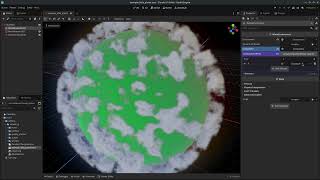
Quick Start (Example)
- Ensure Godot is 4.6 (native or C#) and in a
Forward+project - Open Scene (navigate to
res://addons/clouds_lpand openexample_little_planet.tscn) - Zoom out to ~20m to view 10m radius little planet
- Play with configuration
- Click on
WorldEnvironment - In the inspector, expand the
ComponsitorandCompositor Effects - Click on
CloudsLPto show settings- Majority of settings are under the
Profile, for this scene it's named "AtmoshpereProfile" - Three main sections:
Planet,Atmosphere, andClouds
- Majority of settings are under the
- For more details see Configuring
- The following resources are external (shared between scenes), to modify them uniquely within this scene only, see below:
- Cloud Quality: make unique by left-clicking the link icon
- Profile > Clouds > Noise (all textures): make unique by right-clicking the link icon
- Excluding
Wispnoise, this is a PNG file, not a Godot texture resource. It can be replaced with other curl-like noise - Texture resources often have subresources too, right-clicking makes the texture and it's subresources unique
- Excluding
- Click on
New Setup
- Open or Create a 3D Scene
- Add a
WorldEnvironmentto the node tree if one is not currently in the scene- Optional: configure the
Environment>Backgroundwith mode Custom Color and set to black for space look
- Optional: configure the
- For
WorldEnvironment>Compositor, click on the<empty>indicator - Select
Compositorto create a compositor- Learn more about compositors at the official Godot docs here (4.6)
- Click the new compositor to see
Compositor Effects - Click the Array to expand the effects list
- Click
Add Element - Click the Folder-with-Plus icon next to
<empty>in the effects list - Select
CloudsLPTemplate.tres- Make sure "Addons" is toggled on in the selector window if you don't see anything
- Check it's working
- Center your viewer and zoom out to 85 or more
- There should be a hollow sphere with colors and cloud-like blobs
- Right Click on the
CloudsLPTemplate.tresand "Make Unique" or "Save As"- This copies the template and allows you to configure the compositor settings
- "Make Unique" is like "Save As" but embeds it with the scene
- Click on the effect in the effects list
- This expands to show all configurations (where everything lives)
Configuring
Configuration is done in the compositor, ensure the CloudsLP instance is expanded (See Quick Start (Example) step 4 for details).
The majority of settings are under Profile with three main sections: Planet, Atmosphere, and Clouds. Scale Down Power and the Cloud Quality profile resource impact performance and cloud render distance. Profile > Clouds > Noise Adjust > Global Scale automatically handles render distance, when scaled Cloud Quality does not need to be adjusted (see "Rescaling Everything ..." below in this section).
Cloud Quality and planet Profile are resources which can be saved or loaded. For any external resources (like profiles, gradients, and noise textures), just like with compositor effect itself, it's recommended to save or make unique prior to making any changes.
Flat World: Force flat world (Y-axis is altitude). Position's Y component will be used as sea-level.
Light Source: NodePath to
Light3Dfor illumination color and positioning.- Warning:
Godot's
CompositorEffectis not directly in the scene tree and cannot natively resolve a NodePath. CloudsLP resolves the NodePath during initialization by locating the first named ancestor which can complete the remaining path. The resultingLight3Dis cached during runtime. Restrictions from this limitation are documented directly in the parameter's hint/comment. Warnings and errors are given to help fix path any problems.
- Warning:
Rescaling Everything While Maintaining the Same Visuals:
- Resizing Profile > Atmosphere > Height impacts mutliple visuals
- Atmosphere density and style should automatically adjust
- Clouds do not automatically scale with height
- Profile > Clouds > Noise Adjust > Global Scale should be changed by the same ratio as height (if height was 2 and is now 6, then global scale should be multiplied by 3)
- For planets, scaled clouds may still look visually different if the radius of the planet did not change. This is an issue of curvature, either scale the radius (Profile > Planet > Radius) or individually rescale cloud layers in the Profile > Clouds > Noise > Height gradient.
In Progress...
Creating and Saving Profiles
Cloud Quality and planet Profile are Godot resource and work as any resource would in the editor. Existing ones can be cleared and new ones can be created by clicking on the empty box.
Right click the resource or click the down-arrow next to the name, and click "Save As"
Script Integration
The CloudsLP class provides a static function get_from_node(node: Node). The function returns the first CloudsLP instance in node's compositor effects.
Example:
- Where world_env set to a
WorldEnvironmentnode
@export var world_env: Node

var sky_fx: CloudsLP


func _ready() -> void:
  sky_fx = CloudsLP.get_from_node(world_env)
  sky_fx.position = global_position
  sky_fx.profile.atmo_s_color_direct = Color.PLUM
Custom Modification
Shaders
Shaders are organized into shared *.glslinc include files to reduce code duplication.
Most of the actual code exists in atmo.glslinc, atmo_main.glslinc, and cloud.glslinc.
- Warning:
Godot treats
*.glslincfiles as text substitutions. Changes to an include file do not automatically trigger reimport of the*.glslshaders that include it. After modifying an include, manually reimport all affected*.glslshaders before reloading or running the project, or the changes will not take effect.
Scene info is stored from Godot's render scene data UBO, provided in all shaders as scene.data struct defined in includes/struct_ubo_godot.glslinc.
CloudsLP specific info is writen by clouds_lp_comp.gd _update_config_data() method for the PackedByteArray _config_data (size enforced by _alloc_longterm_data() method).
In shaders as config.data struct defined in includes/struct_ubo_config.glslinc.
Notable Mentions:
- Sunshine Clouds 2: Helping me learn about Godot compositors and cloud marching
Atmospheric and volumetric cloud compositor for spherical and flat worlds.
Native Godot editor integration with reusable Resources and organized inspector categories.
Check included addon README or GitHub README for video and written Guide.
## Features
- Atmospheric rendering from ground to space
- Art-specifc atmosphere controls
- Volumetric cloud generation with atmospheric lighting
- Multiple configurable cloud layers
- Scalable for large planets, toy planets, and flat worlds
- Planet and quality Resource profiles
- Time progression (cloud animation)
Reviews
Quick Information
Clouds for Little Planets
Atmospheric and volumetric cloud compositor for spherical and flat worlds.Native Godot editor integration with reusable Resources and organized inspector categories.Check included addon README or GitHub README for video and written Guide.## Features- Atmospheric rendering from ground to space- Art-specifc atmosphere controls- Volumetric cloud generation with atmospheric lighting- Multiple configurable cloud layers- Scalable for large planets, toy planets, and flat worlds- Planet and quality Resource profiles- Time progression (cloud animation)
Supported Engine Version
4.6
Version String
1.0
License Version
MIT
Support Level
community
Modified Date
10 hours ago
Git URL
Issue URL