CLog
An asset by anchork
Install Asset
Install via Godot
To maintain one source of truth, Godot Asset Library is just a mirror of the old asset library so you can download directly on Godot via the integrated asset library browser
Quick Information


CLog
CLog v1.3.0New FeaturesAdded new functions (800dd55, 277cf13)- o_stack_offset_arr()- c_stack_offset()- c_stack_offset_arr()Fixes- Editor startup errors — Fixed in-editor errors that occurred on startup when the plugin's file-system scan conflicted with the editor's own scan. (PR #5 by @rmvermeulen)- Theme color normalization — Theme colors are now normalized when their values exceed 1.0 (987309a).- Timer error messages — Guarded timer error messages in release builds (5766f71).Stack offset info tag removed — Removed the [INFO] tag prefix from stack offset output (b69fc80).What's Changedclog_editor_plugin.gd: fix in-editor errors on startup by @rmvermeulen in #5New Contributors@rmvermeulen made their first contribution in #5Full Changelog: v1.2.0...v1.3.0CLog is a simple logging utility for Godot 4.It provides enhanced console output with support for source code links, colors, and performance timers.────────────────────────Compatibility────────────────────────Supports Godot 4.5 or later.────────────────────────Features────────────────────────Source Navigation: Clicking on a log entry in the console will take you directly to the source code.Node Link: Passing a Node or NodePath creates a clickable link that selects the node in the Scene tree.Rich Text Output: Supports colored logs and formatting.Performance Timers: Measure execution time with starting, ending, and canceling timers.Note:Source navigation is implemented using a workaround.If navigation stops working, try restarting the plugin or the editor.In IDEs such as VS Code, you can jump to the source code by usingCtrl + Click on the file path.────────────────────────Usage────────────────────────Standard OutputLogs a simple message to the console.```gdscriptCLog.o("Some message")CLog.o("Value A:", 100, "Value B:", true)```────────────────────────Error LoggingLogs an error message with a highlighted style.```gdscriptCLog.e("An error occurred")```────────────────────────Warning LoggingLogs a warning message.```gdscriptCLog.w("This is a warning")```Both CLog.e and CLog.w internally call push_error() and push_warning() respectively.This ensures they appear in Godot’s Debugger panel and are recorded in the built-in engine logs.────────────────────────Custom Color OutputLogs a message using a specific color.```gdscriptCLog.c(Color.ORANGE, "Custom orange message")```────────────────────────Once (log once by key)Logs a message only once for a specific unique key.This is useful for logging inside _process() or loops without flooding the console.```gdscriptfunc _process(_delta: float): # This will be printed only once for the key &"start_processing" CLog.once(&"start_processing", "Process loop started")```────────────────────────Performance TimersMeasure how long a specific process takes.```gdscript# Start a timervar id = CLog.timer_start("Process Name")# End the timer and print elapsed timeCLog.timer_end(id)# Cancel the timer without printingCLog.timer_cancel(id)```────────────────────────Release Mode LoggingBy default, CLog suppresses output in release builds for performance and security.This behavior can be toggled using the disable_output_on_release_mode property.```gdscript# Enable logging even in release modeCLog.disable_output_on_release_mode = false```
Supported Engine Version
4.5
Version String
1.3.0
License Version
MIT
Support Level
community
Modified Date
2 months ago
Git URL
Issue URL
CLog for Godot 4

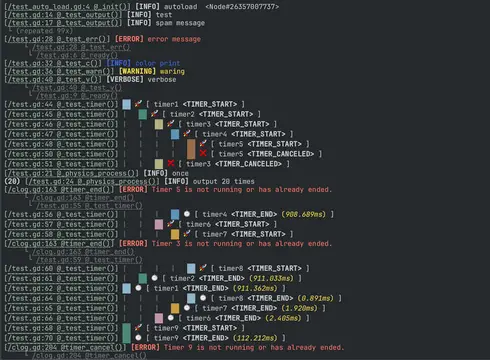
CLog is a simple logging utility for Godot 4. It provides enhanced console output with support for source code links, colors, and performance timers.
Compatibility
Supports Godot 4.5 or later.
Features
- Source Navigation: Clicking on a log entry in the console will take you directly to the source code.
- Rich Text Output: Supports colored logs and formatting.
- Performance Timers: Measure execution time with starting, ending, and canceling timers.
Note: Source navigation is implemented using a workaround. If navigation stops working, please try restarting the plugin or the editor.
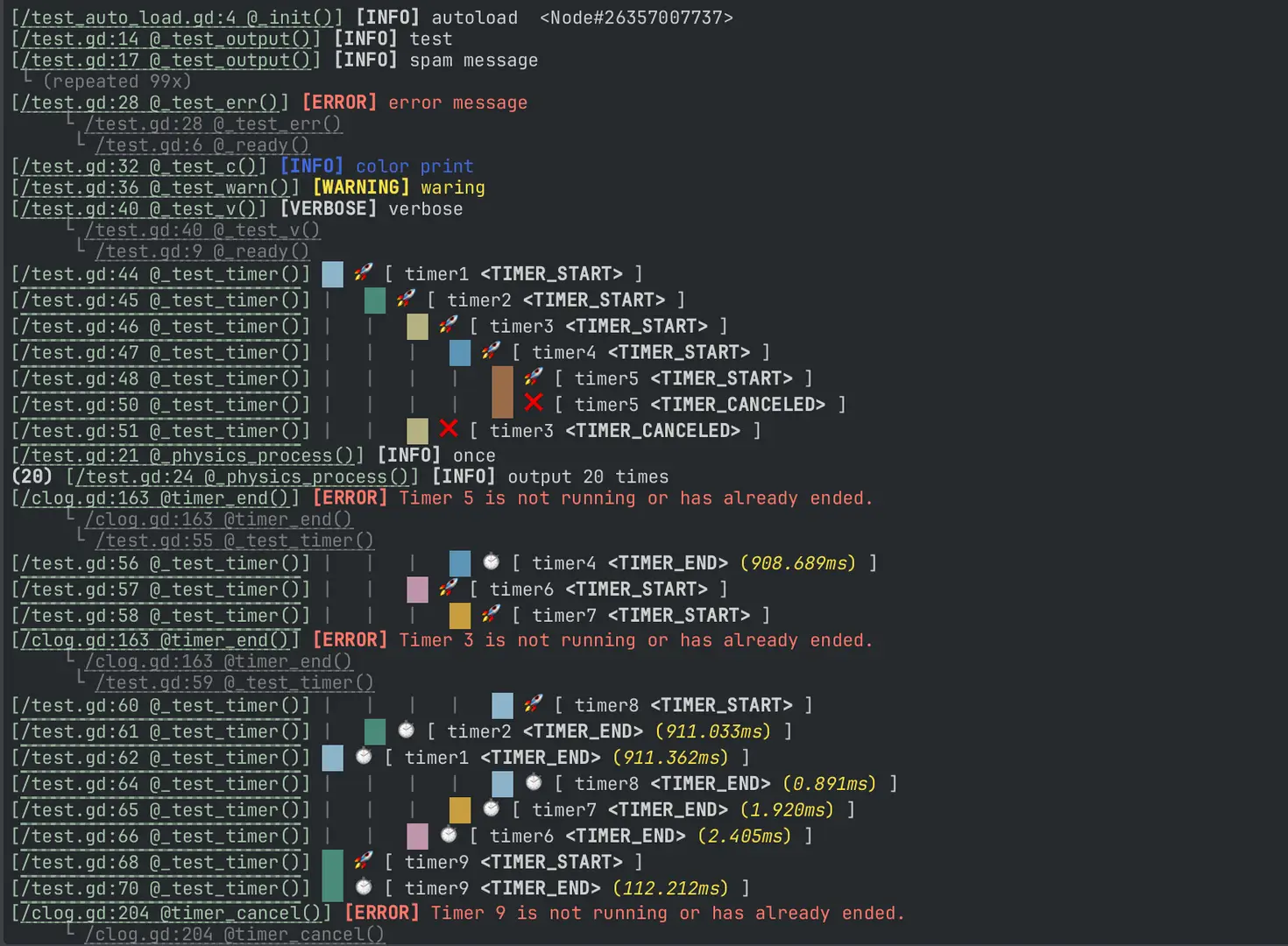
In IDEs such as VS Code or JetBrains, you can jump to the source code by using Ctrl + Click on the file path.
VS Code Display Example:

Usage
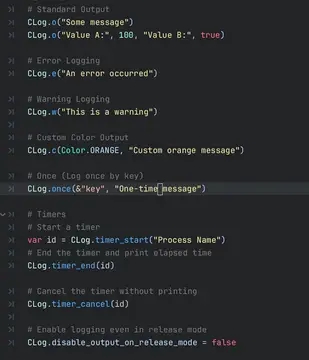
Standard Output
Logs a simple message to the console.
CLog.o("Some message")
CLog.o("Value A:", 100, "Value B:", true)
Error Logging
Logs an error message with a highlighted style.
CLog.e("An error occurred")
Warning Logging
Logs a warning message.
CLog.w("This is a warning")
Both CLog.e and CLog.w internally call push_error() and push_warning() respectively. This ensures they appear in Godot's Debugger panel and are recorded in the built-in engine logs.
Custom Color Output
Logs a message using a specific color.
CLog.c(Color.ORANGE, "Custom orange message")
Once (Log once by key)
Logs a message only once for a specific unique key. This is ideal for logging events inside _process() or loops without flooding the console.
func _process(_delta: float):
    # This will be printed only once for the key &"start_processing"
    CLog.once(&"start_processing", "Process loop started")
Performance Timers
Measure how long a specific process takes.
# Start a timer
var id = CLog.timer_start("Process Name")

# End the timer and print elapsed time
CLog.timer_end(id)

# Cancel the timer without printing
CLog.timer_cancel(id)
Release Mode Logging
By default, CLog suppresses output in release builds for performance and security. You can toggle this behavior using the disable_output_on_release_mode property.
# Enable logging even in release mode
CLog.disable_output_on_release_mode = false
This README was generated with the assistance of AI.
CLog v1.3.0
New Features
Added new functions (800dd55, 277cf13)
- o_stack_offset_arr()
- c_stack_offset()
- c_stack_offset_arr()
Fixes
- Editor startup errors — Fixed in-editor errors that occurred on startup when the plugin's file-system scan conflicted with the editor's own scan. (PR #5 by @rmvermeulen)
- Theme color normalization — Theme colors are now normalized when their values exceed 1.0 (987309a).
- Timer error messages — Guarded timer error messages in release builds (5766f71).
Stack offset info tag removed — Removed the [INFO] tag prefix from stack offset output (b69fc80).
What's Changed
clog_editor_plugin.gd: fix in-editor errors on startup by @rmvermeulen in #5
New Contributors
@rmvermeulen made their first contribution in #5
Full Changelog: v1.2.0...v1.3.0
CLog is a simple logging utility for Godot 4.
It provides enhanced console output with support for source code links, colors, and performance timers.
────────────────────────
Compatibility
────────────────────────
Supports Godot 4.5 or later.
────────────────────────
Features
────────────────────────
Source Navigation:
Clicking on a log entry in the console will take you directly to the source code.
Node Link:
Passing a Node or NodePath creates a clickable link that selects the node in the Scene tree.
Rich Text Output:
Supports colored logs and formatting.
Performance Timers:
Measure execution time with starting, ending, and canceling timers.
Note:
Source navigation is implemented using a workaround.
If navigation stops working, try restarting the plugin or the editor.
In IDEs such as VS Code, you can jump to the source code by using
Ctrl + Click on the file path.
────────────────────────
Usage
────────────────────────
Standard Output
Logs a simple message to the console.
```gdscript
CLog.o("Some message")
CLog.o("Value A:", 100, "Value B:", true)
```
────────────────────────
Error Logging
Logs an error message with a highlighted style.
```gdscript
CLog.e("An error occurred")
```
────────────────────────
Warning Logging
Logs a warning message.
```gdscript
CLog.w("This is a warning")
```
Both CLog.e and CLog.w internally call push_error() and push_warning() respectively.
This ensures they appear in Godot’s Debugger panel and are recorded in the built-in engine logs.
────────────────────────
Custom Color Output
Logs a message using a specific color.
```gdscript
CLog.c(Color.ORANGE, "Custom orange message")
```
────────────────────────
Once (log once by key)
Logs a message only once for a specific unique key.
This is useful for logging inside _process() or loops without flooding the console.
```gdscript
func _process(_delta: float):
# This will be printed only once for the key &"start_processing"
CLog.once(&"start_processing", "Process loop started")
```
────────────────────────
Performance Timers
Measure how long a specific process takes.
```gdscript
# Start a timer
var id = CLog.timer_start("Process Name")
# End the timer and print elapsed time
CLog.timer_end(id)
# Cancel the timer without printing
CLog.timer_cancel(id)
```
────────────────────────
Release Mode Logging
By default, CLog suppresses output in release builds for performance and security.
This behavior can be toggled using the disable_output_on_release_mode property.
```gdscript
# Enable logging even in release mode
CLog.disable_output_on_release_mode = false
```
Reviews
Quick Information
CLog
CLog v1.3.0New FeaturesAdded new functions (800dd55, 277cf13)- o_stack_offset_arr()- c_stack_offset()- c_stack_offset_arr()Fixes- Editor startup errors — Fixed in-editor errors that occurred on startup when the plugin's file-system scan conflicted with the editor's own scan. (PR #5 by @rmvermeulen)- Theme color normalization — Theme colors are now normalized when their values exceed 1.0 (987309a).- Timer error messages — Guarded timer error messages in release builds (5766f71).Stack offset info tag removed — Removed the [INFO] tag prefix from stack offset output (b69fc80).What's Changedclog_editor_plugin.gd: fix in-editor errors on startup by @rmvermeulen in #5New Contributors@rmvermeulen made their first contribution in #5Full Changelog: v1.2.0...v1.3.0CLog is a simple logging utility for Godot 4.It provides enhanced console output with support for source code links, colors, and performance timers.────────────────────────Compatibility────────────────────────Supports Godot 4.5 or later.────────────────────────Features────────────────────────Source Navigation: Clicking on a log entry in the console will take you directly to the source code.Node Link: Passing a Node or NodePath creates a clickable link that selects the node in the Scene tree.Rich Text Output: Supports colored logs and formatting.Performance Timers: Measure execution time with starting, ending, and canceling timers.Note:Source navigation is implemented using a workaround.If navigation stops working, try restarting the plugin or the editor.In IDEs such as VS Code, you can jump to the source code by usingCtrl + Click on the file path.────────────────────────Usage────────────────────────Standard OutputLogs a simple message to the console.```gdscriptCLog.o("Some message")CLog.o("Value A:", 100, "Value B:", true)```────────────────────────Error LoggingLogs an error message with a highlighted style.```gdscriptCLog.e("An error occurred")```────────────────────────Warning LoggingLogs a warning message.```gdscriptCLog.w("This is a warning")```Both CLog.e and CLog.w internally call push_error() and push_warning() respectively.This ensures they appear in Godot’s Debugger panel and are recorded in the built-in engine logs.────────────────────────Custom Color OutputLogs a message using a specific color.```gdscriptCLog.c(Color.ORANGE, "Custom orange message")```────────────────────────Once (log once by key)Logs a message only once for a specific unique key.This is useful for logging inside _process() or loops without flooding the console.```gdscriptfunc _process(_delta: float): # This will be printed only once for the key &"start_processing" CLog.once(&"start_processing", "Process loop started")```────────────────────────Performance TimersMeasure how long a specific process takes.```gdscript# Start a timervar id = CLog.timer_start("Process Name")# End the timer and print elapsed timeCLog.timer_end(id)# Cancel the timer without printingCLog.timer_cancel(id)```────────────────────────Release Mode LoggingBy default, CLog suppresses output in release builds for performance and security.This behavior can be toggled using the disable_output_on_release_mode property.```gdscript# Enable logging even in release modeCLog.disable_output_on_release_mode = false```
Supported Engine Version
4.5
Version String
1.3.0
License Version
MIT
Support Level
community
Modified Date
2 months ago
Git URL
Issue URL