NeonPageController
An asset by metapika
Install Asset
Install via Godot
To maintain one source of truth, Godot Asset Library is just a mirror of the old asset library so you can download directly on Godot via the integrated asset library browser
Quick Information

NeonPageController
A Godot Plugin that manages UI Pages and makes switching between them very easy and convenient!!!! PLEASE READ THE DOCS ON GITHUB BEFORE USING THE PLUGIN !!!https://github.com/metapika/neon-page-controller
Supported Engine Version
4.4
Version String
1.0
License Version
GPLv3
Support Level
community
Modified Date
2 days ago
Git URL
Issue URL
NeonPageController
A Godot Plugin that manages UI Pages and makes switching between them very easy and convenient!
Overview
NeonPageController is a Godot Plugin/Addon that makes it boringly easy and straight-forward to add, remove, manage and switch between UI "Pages" in your Godot Projects!
NeonSceneRunner Plugin
NOTE In order to make the most out of this Plugin I reccomend checking out an Addon I made called NeonSceneRunner that allows for great Scene Management and pairs well with this UI Page system! It is not needed, but very much reccomended!
What is a "Page"?
Any UI that groups tightly related UI Elements and one that will most likely be shown by itself, for example: Menus such as Main Menu or Settings, In-Game HUD and Inventories/Chests, Loading Screens, Dialogue Screens, etc..)
Any game with more complexity than Pong will really benefit from this Addon as it is really versatile and makes it really easy to manage ALL of your Game UIs!
How does it work?
Upon running a Scene that has a "PageController" Node in it, the PageController script enabled the "Start Page" that's currently selected (by default it's the Main Menu). After that any script that has a reference to the PageController Node can use the function _turn_page_on and _turn_page_off in order to switch between UI Pages. The whole procedure of enabling and disabling pages is easy to grasp by anyone curious.
Features
- Easily access and reference UI Pages by a user-defined PageType enum.
- Quickly switch between scene-dependant UIs.
- Easily add transition animations to Pages!
- Globally store user interfaces to never lose any during scene changes!
Installation
- In your Godot Project press the 'AssetLib' button at the top:

- Search "NeonPageController", Download the Plugin and press 'Install'.
- Good job, you are ready to use NeonPageController!
Core Functionality
Firstly, let's discuss the core aspects of the Plugin.
- PageType.gd - is a class that defines an enum of the same name. This is used in all other scripts to manage the Pages.
- Page - a custom Node that groups all elements belonging to a certain Page Type set by the user.
- PageController - a custom Node that's used to manage all Pages added to it's Page List.
Setup
Open the PageType.gd script located at "res://addons/neon_page_controller/Scripts/Classes/PageType.gd".
Define any PageTypes for later use (The default types are: MainMenu, InGame, Paused and Loading, but feel free to remove them.)
[!CAUTION] Leave the NONE PageType and make sure it's the first one defined as it's used in scripts everywhere and removing will cause many errors.
With NeonSceneRunner Addon (Reccomended)
- In the Runner.tscn scene add the PageController Node by pressing Ctrl+A and searching for it.
Without NeonSceneRunner Addon:
- In any scene (preferably a new one) add the PageController Node by pressing Ctrl+A and searching for it.
In the Inspector you will see 3 values that you can edit:
- Start Page - The default Page that will be set visible when starting the game;
- Pages - An array that stores all references to Page Nodes in your hierarchy. Here you will add ALL of the Pages you want to turn on and off by the PageController;
- Debug Mode - In order to easily Debug the inner workings of the Plugin I've added a Debug Mode that prints out messages to Godot's Output Dock. I've enabled it by default, but you can easily disable it by making the property false;
After selecting the newly-created PageController press Ctrl + A again and add a Page Node to the Scene.
- In the Inspector you will see 3 values that you can edit:
- PageType - is the type the Controller will identify this Page with;
- Animate - is a bool that tells the script whether it should look for an AnimationPlayer to animate the closing and opening of the Page;
- Open/Close Animation Name - are both animation names the Controller will try to trigger when animating the Page;
- Change these values accordingly to your needs for each Page.
- In the Inspector you will see 3 values that you can edit:
Do Step 5 for ALL of the PageTypes that you want to make Pages for.
After creating all of your Pages, add them to the Pages array on the PageController.
That's it, you are ready to use your NeonPageController!
Usage
In any of your scripts you can use the two following functions:
_page_controller._turn_page_on(PT.PageType _page_on)
and
_page_controller._turn_page_off(PT.PageType _page_off)
_turn_page_off function has a second variation that allows you to switch from _page_off to a new _page_on, instead of just turning off the _page_off Page. You can call it like this:
_page_controller._turn_page_off(PT.PageType _page_off, PT.PageType _page_on)
[!CAUTION] Godot is not capable of making global enums, that's why if you want to use the PageType enum in your scripts you need to instantiate the class containing it like this:
## Loading in the script that contains the PageType Enum definition
const PT = preload("res://addons/neon_page_controller/Scripts/Classes/PageType.gd")
And in order to use the enum you have to type it in like this:
var _example_page : PT.PageType
Alternatively, you can also call all functions with ints instead of the PageType enum, just remember to look up which types correspond to which index.
Animating Pages
Here are the neccessary steps you need to take to Animate your Pages:
Open/Select the Page you want to animate in the Inspector.
Set the Animate bool on the Node to True.
Add an AnimationPlayer as a child of the Page. You hierarchy should look like this:
Create/Add close and open animations to the AnimationPlayer (Make sure both of them are named just like the Open/Close Animation Name variables on the Page)
You're done! Now when the Page you animated is enabled/disabled it will automatically play the two animations accordingly!
Example Usage
Upon importing the Plugin you will see new Folders show up in the root of your res:// directory:

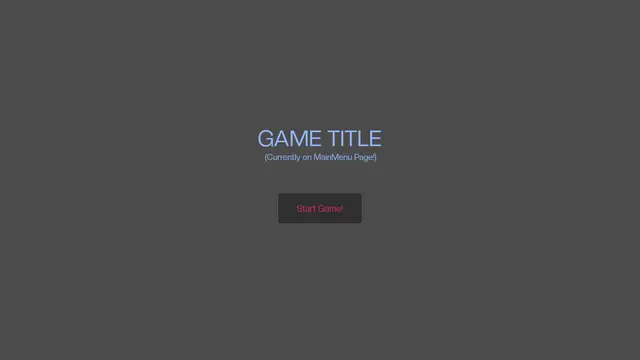
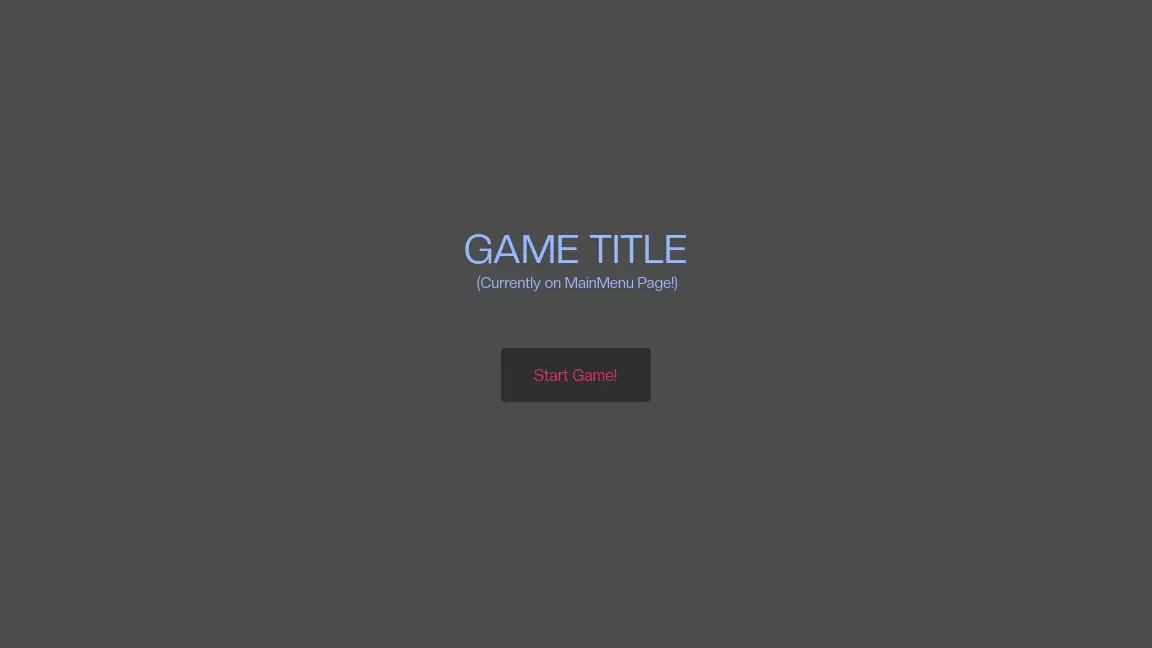
In order to try out the NeonPageController Addon you can open the 'PageControllerExample.tscn' Scene and press F6 afterwards. You will be granted with an Example Title Screen for a game with a single 'Play Game!' button:

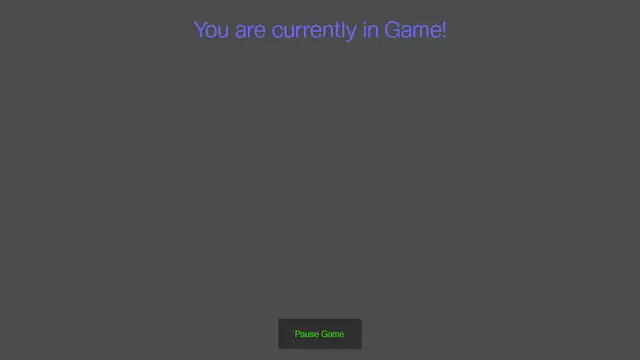
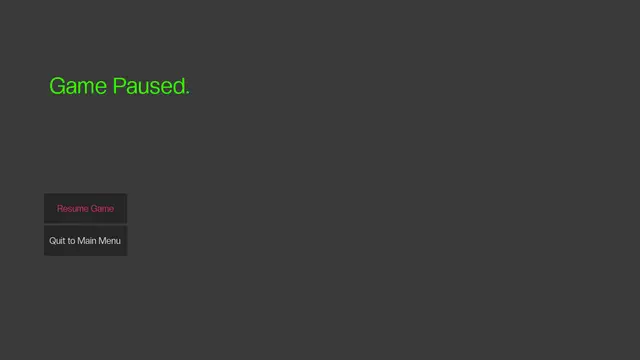
You can play around with the Example User Interfaces by pressing the Play Game, Pause, Resume and Quit to Title Screen buttons, all UIs are color-coded to show that you are in fact switching between them.
NeonPages-Example-PauseMenu.gd Script
This is the Example Script all the Example UIs use. You can preview the example usage of the _tun_page_on() and _turn_page_off() functions in this script. It contains functions for the buttons you can see on your screen and shows many ways you can use said functions.
A Godot Plugin that manages UI Pages and makes switching between them very easy and convenient!
!!! PLEASE READ THE DOCS ON GITHUB BEFORE USING THE PLUGIN !!!
https://github.com/metapika/neon-page-controller
Reviews
Quick Information
NeonPageController
A Godot Plugin that manages UI Pages and makes switching between them very easy and convenient!!!! PLEASE READ THE DOCS ON GITHUB BEFORE USING THE PLUGIN !!!https://github.com/metapika/neon-page-controller
Supported Engine Version
4.4
Version String
1.0
License Version
GPLv3
Support Level
community
Modified Date
2 days ago
Git URL
Issue URL