Copy Scene Tree
An asset by Ahtesham Khan
Install Asset
Install via Godot
To maintain one source of truth, Godot Asset Library is just a mirror of the old asset library so you can download directly on Godot via the integrated asset library browser

Quick Information

Copy Scene Tree
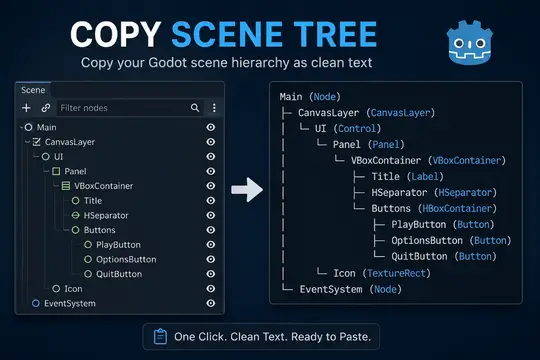
Copy Scene Tree is a lightweight Godot 4 editor plugin that copies the selected node and its entire hierarchy to the clipboard as clean, formatted text. The output includes node names, types, and attached script filenames (when present), making it perfect for sharing scene structures in bug reports, documentation, GitHub issues, or AI assistants like ChatGPT, Claude, and Gemini. Simply select a node, choose Tools → Copy Scene Tree, and paste the generated hierarchy anywhere.
Supported Engine Version
4.0
Version String
1.0.0
License Version
MIT
Support Level
community
Modified Date
23 hours ago
Git URL
Issue URL
Copy Scene Tree
Ever tried to describe your Godot scene structure in a GitHub issue, a bug report, or an AI chat — and ended up typing it out by hand? This plugin fixes that.
Copy Scene Tree is a Godot 4.x editor plugin that copies any selected node's hierarchy as clean, readable text directly to your clipboard. One menu click, zero friction.
It is especially useful when asking AI assistants like ChatGPT, Claude, or Gemini for help with your Godot project. Instead of describing your scene in prose, you can paste the exact structure and get answers grounded in your actual setup.
Features
- One-click copy of any selected node and its full subtree
- Clean tree-drawing characters (
├──,└──,│) at any nesting depth - Shows node names and Godot class names by default
- Displays attached script filenames when present, such as
[player.gd] - Shows
[Built-in Script]for scripts embedded directly in a scene file - Copies directly to the system clipboard
- Gives non-blocking feedback in the Output panel
- Editor-only addon with no runtime footprint in exported games
- Small formatter script that can be extended with additional output styles
Perfect For
- AI assistants — paste your scene into ChatGPT, Claude, or Gemini and get precise, context-aware answers
- Bug reports — show exactly what your scene looks like without screenshots
- GitHub discussions — share hierarchy in issues or pull request descriptions
- Team collaboration — communicate scene structure clearly across your team
- Project documentation — drop accurate scene snapshots into wikis or design docs
Demo
See the demo GIF in the repository root on GitHub. Asset Library downloads include only the addon folder.
Repository Layout
addons/
└── copy_scene_tree/
    ├── plugin.cfg
    ├── plugin.gd
    ├── scene_tree_formatter.gd
    ├── icon.svg
    ├── icon.png
    ├── README.md
    └── LICENSE
Only the addons/ folder is included in Asset Library downloads. The repository root contains project metadata, documentation, and the demo GIF.
Installation
From the Godot Asset Library
Search for Copy Scene Tree in the Godot Asset Library and click Install.
Manual Installation
- Copy the
addons/copy_scene_tree/folder into your project'saddons/directory. - Open your project in Godot 4.x.
- Go to Project → Project Settings → Plugins.
- Find Copy Scene Tree and set its status to Enabled.
Usage
- Open a scene and select any node in the Scene dock.
- Go to Project → Tools → Copy Scene Tree.
- The hierarchy rooted at the selected node is copied to your clipboard.
- Paste it anywhere: an AI chat, a GitHub issue, documentation, or a message to a teammate.
A confirmation message appears in the Output panel so you know the copy succeeded.
Why not the right-click context menu? Godot 4.x does not expose a public API for injecting items into the Scene dock's right-click
PopupMenu. Doing so requires scanning internal editor nodes, which is fragile across engine versions. The Project → Tools menu is the stable, officially supported location for editor plugin actions.
Output Format
Default format: Names + Types + Scripts
Player (CharacterBody2D) [player.gd]
├── CollisionShape2D (CollisionShape2D)
├── AnimatedSprite2D (AnimatedSprite2D)
├── AnimationPlayer (AnimationPlayer)
└── Camera2D (Camera2D) [camera_controller.gd]
Deeper nesting is handled correctly at any level:
Root (Node2D) [main.gd]
├── HUD (CanvasLayer)
│   ├── HealthBar (ProgressBar)
│   └── ScoreLabel (Label)
└── World (Node2D)
    ├── Player (CharacterBody2D) [player.gd]
    └── Enemies (Node2D) [enemy_manager.gd]
Script filenames are shown only when a script is attached. Nodes without scripts are displayed normally. Scripts embedded directly in the scene, rather than saved as .gd files, show [Built-in Script].
The formatter lives in addons/copy_scene_tree/scene_tree_formatter.gd. Its Format enum is the single place to register new output styles.
Adding New Formats
- Add a new entry to the
Formatenum inaddons/copy_scene_tree/scene_tree_formatter.gd. - Add a
matchbranch in_format_node(). - Optionally expose a settings UI in
addons/copy_scene_tree/plugin.gdthat persists the user's preference.
No other files need to change.
Compatibility
| Godot version | Status |
|---|---|
| 4.x (4.0 and newer) | Supported |
| 3.x | Not supported |
Author
Created by Creative-banda.
License
MIT — see LICENSE.
Copy Scene Tree is a lightweight Godot 4 editor plugin that copies the selected node and its entire hierarchy to the clipboard as clean, formatted text. The output includes node names, types, and attached script filenames (when present), making it perfect for sharing scene structures in bug reports, documentation, GitHub issues, or AI assistants like ChatGPT, Claude, and Gemini. Simply select a node, choose Tools → Copy Scene Tree, and paste the generated hierarchy anywhere.
Reviews
Quick Information
Copy Scene Tree
Copy Scene Tree is a lightweight Godot 4 editor plugin that copies the selected node and its entire hierarchy to the clipboard as clean, formatted text. The output includes node names, types, and attached script filenames (when present), making it perfect for sharing scene structures in bug reports, documentation, GitHub issues, or AI assistants like ChatGPT, Claude, and Gemini. Simply select a node, choose Tools → Copy Scene Tree, and paste the generated hierarchy anywhere.
Supported Engine Version
4.0
Version String
1.0.0
License Version
MIT
Support Level
community
Modified Date
23 hours ago
Git URL
Issue URL