

Demonstrate how to use the "Godot LLM" plugin.# How to use1. Get `Godot LLM` directly from the godot asset library, or download the addon from [godot-llm](https://github.com/Adriankhl/godot-llm) and place it to the `addons` folder2. Download models * Text generation recommendation: Meta-Llama-3-8B-Instruct-Q5_K_M.gguf from https://huggingface.co/lmstudio-community/Meta-Llama-3-8B-Instruct-GGUF/tree/main or Phi-3-mini-4k-instruct-Q2_K.gguf from https://huggingface.co/bartowski/Phi-3-mini-4k-instruct-GGUF/tree/main for low-end devices such as Android phone * Similarity recommendation: mxbai-embed-large-v1.Q5_K_M.gguf from https://huggingface.co/ChristianAzinn/mxbai-embed-large-v1-gguf/tree/main * Image to text recommendation: llava-phi-3-mini-int4.gguf from https://huggingface.co/xtuner/llava-phi-3-mini-gguf/tree/main, also download the `llava-phi-3-mini-mmproj-f16.gguf` from the same page* Vector Database setting is similar to `Similarity`3. Open the application with GodotYou will see 4 modes: `Text Generation`, `Similarity`, `Image to Text`, and `Vector Database`In each mode, you need to clide `Model` to point to the correct model `gguf` file. Additionally, in `Image to Text` mode, you need to click `Mmproj` to point to your `*mmproj*gguf` file.# Text GenerationYou will see there are 3 generation mode: `Simple`, `Instruct`, and `Interactive`. ## `Simple` modeJust edit the prompt and click `Generate`. Click `Stop` to stop the generation.You choose `None` schema or `Person` schema, if you choose `None` schema, the model will generate the information of a character with Json format.## `Instruct` mode (currently disabled)Click `Start` first with empty prompt, then modify the prompt and click `Continue` when it is available to talk to the AI. This is an interactive mode. Whenever you see the `Continue` button is available, either input something in the prompt and click `Continue` to send the input, or simply click `Continue` to let the AI talk itself.## `Interactive` modeSimilar to the instruct mode, except that it relies on a good initial prompt and additoinal reverse prompt and input suffix settings to generate a smooth conversation. The preset prompt should work decently well, click the `Start` button with the preset prompt and start talkin to the AI.# SimilarityInput prompts to compute the `Embedding`, or input two prompts to calculate their `Similarity`# Image to TextSelect an `Image` from your device. Alternative, click `From View` to capture your game screen as the image. You can `Compute Base64` encoding for your image, or decode a base64 string back to `Compute Image`. Edit the prompt, and generate text from `Image`, `Base64`, or `View` (your game screen).# Vector DatabaseClick `Metadata: id, year` to define the metadata of the tables, then click `Create tables` to create a some tables for embedding storage and retrieval. Click `Store text` to split the document into chunks and store into the database, you may also click `Split text` to see the chunks. Click `Retrieve` to retrive three most similar text chunks with the upper left prompt, which satisfy the sql-where-clause in the middle right. You may also turn on "Verbose stdout", modify the upper prompt to a valid sql statement, and click execute to run the sql statement directly, you will see the result in godot log.
Simple Concept Template: Main Menu
An asset by BosenCheng
Quick Information

Simple Concept Template: Main Menu
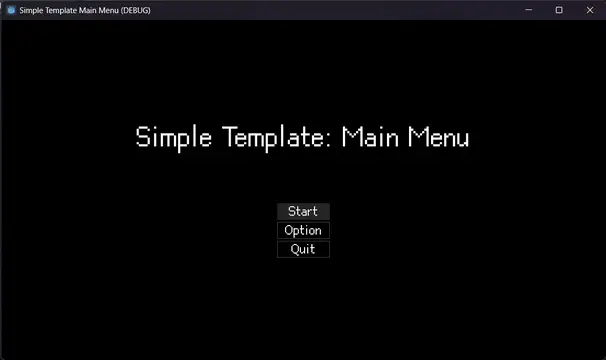
Simple main menu template for Godot 4Check the Itch.io page for a playable demo: https://unchain112.itch.io/simple-concept-template-main-menuThe default play scene includes a white box that can be moved with W, A, S, D. In the example control scene, press ESC to enter Pause menu.Ready to be used for prototyping or game jams.Features:- A basic start menu with Play, Options, and Quit buttons.- A basic options menu with three tabs:- Video tab: Fullscreen, Borderless, Vsync- Music tab: Master, Music, Sound Effects- Control tab: Up, Down, Left, Right- A sample control testing scene (Press the Play button in the start menu)- An auto-loaded Scene Manager- Persistence (Not available in the web build)- An auto-loaded Audio Manager with UI sound, and example music for testing- Support for keyboard-only control (grab-focus in every menu)PS:- Persistence and Scene Manager are both located in Utilities.- Persistence is not enabled by default; set it in Utilities.gd using is_persistence.Check the credits in the GitHub repo or Itch.io page.
Supported Engine Version
4.2
Version String
1.0.0
Support Level
community
Modified Date
2 years ago
Git URL
Issue URL
SimpleTemplateMainMenu
Simple main menu template for Godot 4
The default play scene includes a white box that can be moved with W, A, S, D.
Features:
- A basic start menu with Play, Options, and Quit buttons.
- A basic options menu with three tabs:
- Video tab: Fullscreen, Borderless, Vsync
- Music tab: Master, Music, Sound Effects
- Control tab: Up, Down, Left, Right
- A sample control testing scene (Press the Play button in the start menu)
- An auto-loaded Scene Manager
- Persistence (Not available in the web build)
- An auto-loaded Audio Manager
- Support for keyboard-only control (grab-focus in every menu)
PS:
- Persistence and Scene Manager are both located in Utilities.
- Persistence is not enabled by default; set it in Utilities.gd using is_persistence."
Credits:
Simple main menu template for Godot 4 Check the Itch.io page for a playable demo: https://unchain112.itch.io/simple-concept-template-main-menu The default play scene includes a white box that can be moved with W, A, S, D. In the example control scene, press ESC to enter Pause menu. Ready to be used for prototyping or game jams. Features: - A basic start menu with Play, Options, and Quit buttons. - A basic options menu with three tabs: - Video tab: Fullscreen, Borderless, Vsync - Music tab: Master, Music, Sound Effects - Control tab: Up, Down, Left, Right - A sample control testing scene (Press the Play button in the start menu) - An auto-loaded Scene Manager - Persistence (Not available in the web build) - An auto-loaded Audio Manager with UI sound, and example music for testing - Support for keyboard-only control (grab-focus in every menu) PS: - Persistence and Scene Manager are both located in Utilities. - Persistence is not enabled by default; set it in Utilities.gd using is_persistence. Check the credits in the GitHub repo or Itch.io page.
Reviews
0 total reviews
Quick Information
Simple Concept Template: Main Menu
Simple main menu template for Godot 4Check the Itch.io page for a playable demo: https://unchain112.itch.io/simple-concept-template-main-menuThe default play scene includes a white box that can be moved with W, A, S, D. In the example control scene, press ESC to enter Pause menu.Ready to be used for prototyping or game jams.Features:- A basic start menu with Play, Options, and Quit buttons.- A basic options menu with three tabs:- Video tab: Fullscreen, Borderless, Vsync- Music tab: Master, Music, Sound Effects- Control tab: Up, Down, Left, Right- A sample control testing scene (Press the Play button in the start menu)- An auto-loaded Scene Manager- Persistence (Not available in the web build)- An auto-loaded Audio Manager with UI sound, and example music for testing- Support for keyboard-only control (grab-focus in every menu)PS:- Persistence and Scene Manager are both located in Utilities.- Persistence is not enabled by default; set it in Utilities.gd using is_persistence.Check the credits in the GitHub repo or Itch.io page.
Supported Engine Version
4.2
Version String
1.0.0
Support Level
community
Modified Date
2 years ago
Git URL
Issue URL
Related Assets
More in Templates

Template for new Godot games. It has a main menu, options menus, pause menu, credits, scene loader, extra tools, and an example game scene.Created in collaboration with members of the Godot Wild Jam community.For usage information, visit the following: https://github.com/Maaack/Godot-Game-Template/blob/main/README.md#usage

This is a thirdperson controller made with C# in the .NET version of Godot 4.0. It doesn't have sounds or a complex model so you just have what you really need.It rotates your input and smoothly rotates your mesh to the camera rotation.You can watch the great demo video
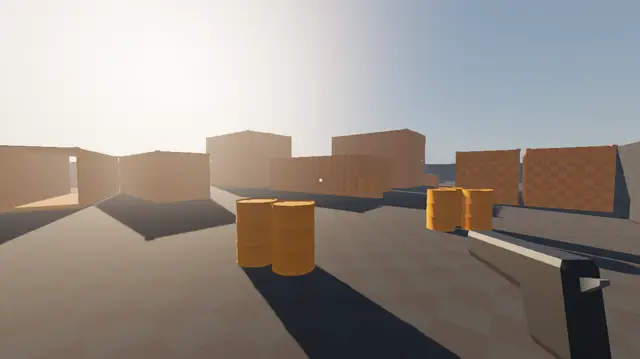

An FPS multiplayer template with everything you'd need to get started. Includes a full map with custom 3d assets.Features:- Multiplayer- Full map with custom assets- Controller support (including menus)- Cinematic Main menu- Pause menu- Options menu with: - Fullscreen - Fps and ping counters - Mouse and controller sensitivity- Bullets wall collision- Random respawn on map- Adjusted light and environment ("better graphics")QOL:- Configurable random respawns Player > Inspector > Spawns- Tooltips for exported variablesThe 3d assets are made by me and go by the same MIT license, so you are free to use them in your commercial games.Credits:- Textures used are made by https://kenney.nl/ and pre-packaged for Godot by Calinou- The base multiplayer functionality was made by following a tutorial from DevLogLogan https://youtu.be/n8D3vEx7NAE