


A simple branching dialogue editor and stateless runtime.Create your dialogue right in the Godot Editor itself with a simple script-like language and the built-in syntax checker.Then, in your game, use the DialogueManager global to fetch lines of dialogue. There is an example dialogue balloon to help get you started on creating your own to fit in better with your game.
Turgy's Behavior Tree Plugin
An asset by yanevyuk
Quick Information

Turgy's Behavior Tree Plugin
A behavior tree plugin with a graphical interface.INSTRUCTIONS: //After activating the plugin1. The _tick() method of the behavior tree must be called from any script.1. Add the BehaviorTree node under any object2. In the BehaviorTree node, change the logicRoot to which node it'll affect.3. Choose the Behavior Tree Folder, this is the folder where your action and condition scripts will be stored.4. Whenever you select the behavior tree node, you will see a new dock next to Inspector and Node.5. In this screen, you can create your behavior tree.Note: You can right-click to create new nodes or click the new button on the left.Ctrl+S saves the current state, however it is a lot safer to click save.Calling the _tick method from _process or _physics_process might make the game freeze.Adding a repeat node after the root node and calling the _tick only once fixes this problem.
Supported Engine Version
3.1
Version String
1.0
Support Level
community
Modified Date
6 years ago
Git URL
Issue URL
turgys-behavior-tree-plugin
A behavior tree plugin with a graphical interface. INSTRUCTIONS: //After activating the plugin 1. The _tick() method of the behavior tree must be called from any script. 1. Add the BehaviorTree node under any object 2. In the BehaviorTree node, change the logicRoot to which node it'll affect. 3. Choose the Behavior Tree Folder, this is the folder where your action and condition scripts will be stored. 4. Whenever you select the behavior tree node, you will see a new dock next to Inspector and Node. 5. In this screen, you can create your behavior tree. Note: You can right-click to create new nodes or click the new button on the left. Ctrl+S saves the current state, however it is a lot safer to click save. Calling the _tick method from _process or _physics_process might make the game freeze. Adding a repeat node after the root node and calling the _tick only once fixes this problem.
Reviews
0 total reviews
Quick Information
Turgy's Behavior Tree Plugin
A behavior tree plugin with a graphical interface.INSTRUCTIONS: //After activating the plugin1. The _tick() method of the behavior tree must be called from any script.1. Add the BehaviorTree node under any object2. In the BehaviorTree node, change the logicRoot to which node it'll affect.3. Choose the Behavior Tree Folder, this is the folder where your action and condition scripts will be stored.4. Whenever you select the behavior tree node, you will see a new dock next to Inspector and Node.5. In this screen, you can create your behavior tree.Note: You can right-click to create new nodes or click the new button on the left.Ctrl+S saves the current state, however it is a lot safer to click save.Calling the _tick method from _process or _physics_process might make the game freeze.Adding a repeat node after the root node and calling the _tick only once fixes this problem.
Supported Engine Version
3.1
Version String
1.0
Support Level
community
Modified Date
6 years ago
Git URL
Issue URL
Related Assets
More in Tools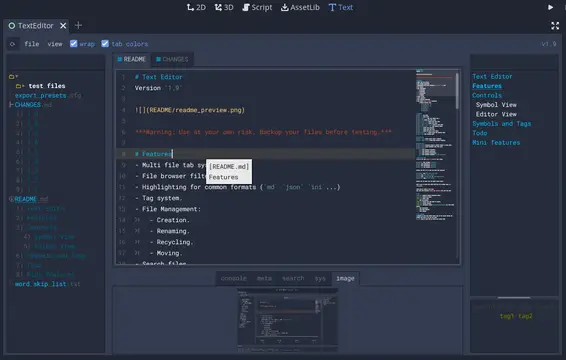

A text editor with many features:- Table of contents.- Tag filtering.- Comment toggling for .md .yaml .json .ini .cfg.- Directory colors.- And tons of Quality of Life features.
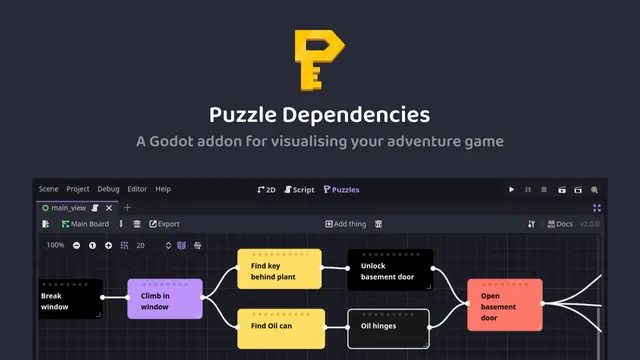

A tool for building puzzle dependency charts to help visualise and map out your adventure game puzzles.


A routeable HTTP server for Godot.