

This addon adds a container, that can have multiple tabs, which the user can change by swiping left or right on the screen. It is based on the ScrollContainer node.Getting Started:• Download the addon and place it into your project directory, either manually, or through the Asset Store• Activate it in the Project Settings ("Plugins" tab)• Add a BetterTabContainer node to a scene. It is recommended that it is either set to full rect or has a "Fill" horizontal size flag• Add multiple nodes to it. Each child node counts as a separate tab, it can be any type of Control node. Please ignore the "ScrollContainer can only have one node" warning, I am actively trying to get rid of it• Done!Customizing the Node:• You can set the "Current Tab" property in the inspector. By default, it is set to 0, meaning the first tab is active on start• You can connect the "tab_switched" signal to another node to detect when it's changed• If you want to change the tab through code (for example, if you have a list of tab buttons next to the container), you can call the switch_tab(tab) method• You might also want to hide the horizontal scroll bar, as it does nothing• If you want to be able to swipe on tabs, make sure to set all of the children containers' mouse filter to "Pass", so it detects input
Material Design Icons for Godot (Deprecated)
An asset by Jebedaia
Quick Information

Material Design Icons for Godot (Deprecated)
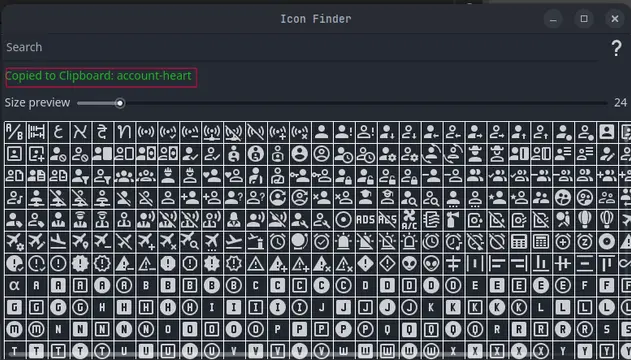
Use Godot Font Icons instead!This addon provides the following nodes to use the icons in Godot:MaterialIcon: A node that displays an icon from the Material Design Icons collection.MaterialButton: A node that displays an icon from the Material Design Icons collection as a button (without label).Version 2.0 is rewritten to give you access to MaterialIconsDB singleton for easier use of icons anywhere in your project.It’s also adds IconsFinder to the Godot’s Tools menu. So you can find the icons easily.
Supported Engine Version
4.0
Version String
2.0
Support Level
community
Modified Date
1 year ago
Git URL
Issue URL



MaterialIcons for Godot
Templarian's Material-Design-Icons is a collection of icons for the Material Design specification.
This addon provides the following nodes to use the icons in Godot:
- MaterialIcon: A node that displays an icon from the Material Design Icons collection.
- MaterialButton: A node that displays an icon from the Material Design Icons collection as a button (without label).
It's also adds IconsFinder to the Godot's Tools menu. So you can find the icons easily.

Exporting
For emojis to work in exported projects, you need add *.json files to include files settings:

Install using gd-plug
To install it with gd-plug add in your plug.gd script:
extends "res://addons/gd-plug/plug.gd"

func _plugging():
    # your other plugins/addons install instructions
    # ...
    plug("rakugoteam/Godot-Material-Icons", {"include": ["addons", ".import/"]})
Use Godot Font Icons instead! This addon provides the following nodes to use the icons in Godot: MaterialIcon: A node that displays an icon from the Material Design Icons collection. MaterialButton: A node that displays an icon from the Material Design Icons collection as a button (without label). Version 2.0 is rewritten to give you access to MaterialIconsDB singleton for easier use of icons anywhere in your project. It’s also adds IconsFinder to the Godot’s Tools menu. So you can find the icons easily.
Reviews
0 total reviews
Quick Information
Material Design Icons for Godot (Deprecated)
Use Godot Font Icons instead!This addon provides the following nodes to use the icons in Godot:MaterialIcon: A node that displays an icon from the Material Design Icons collection.MaterialButton: A node that displays an icon from the Material Design Icons collection as a button (without label).Version 2.0 is rewritten to give you access to MaterialIconsDB singleton for easier use of icons anywhere in your project.It’s also adds IconsFinder to the Godot’s Tools menu. So you can find the icons easily.
Supported Engine Version
4.0
Version String
2.0
Support Level
community
Modified Date
1 year ago
Git URL
Issue URL
Related Assets
More in 2D Tools

This addon includes some common emotion expression icon animations, which are generally used in dialogue.Please check the repository for more information.
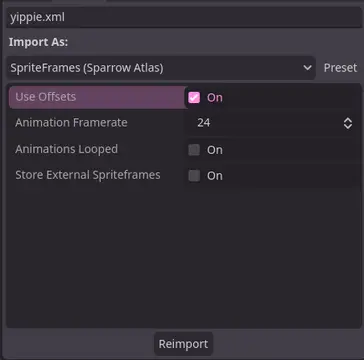

A Godot addon that adds a ResourceImporter for the Sparrow Texture Atlas XML Format.

TileBitTools is a Godot 4 plugin for autotile templates and terrain bit editing.- Built-in autotile templates for all 3 terrain modes* 3x3 minimal, 3x3 16-tile and 2x2 templates from Godot 3 documentation* Blob, Wang and Wang 3-terrain templates to match Tilesetter's default export* 256-tile Corners and Sides templates from TilePipe2 (requires plugin for use)* Simple 9- and 4-tile templates- Custom user template creation- Bulk terrain bit editing buttons: Fill, Set Bits, and Clear- Customization options in Project SettingsSee github.com/dandeliondino/tile_bit_tools for full Readme and Wiki documentation